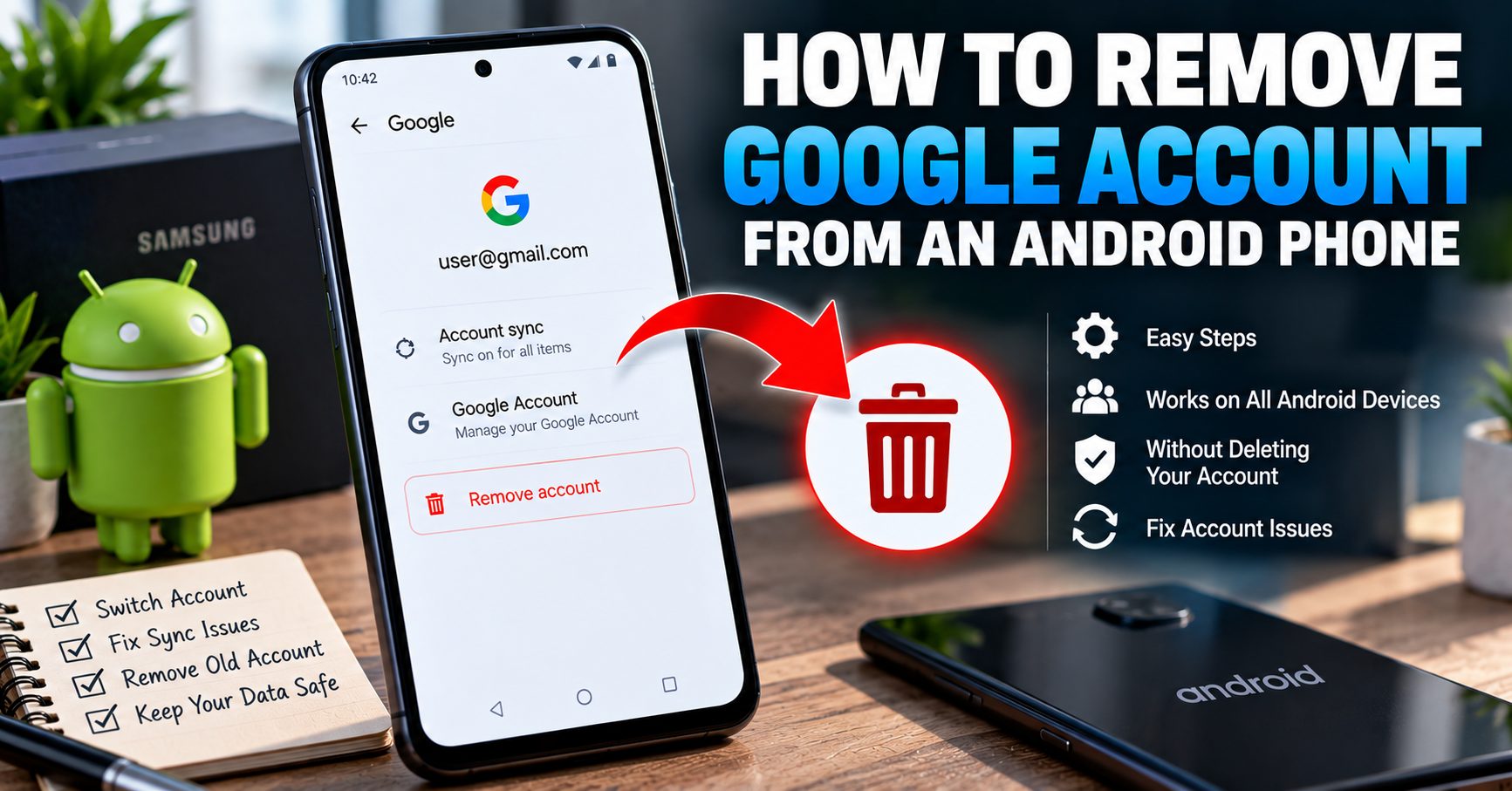
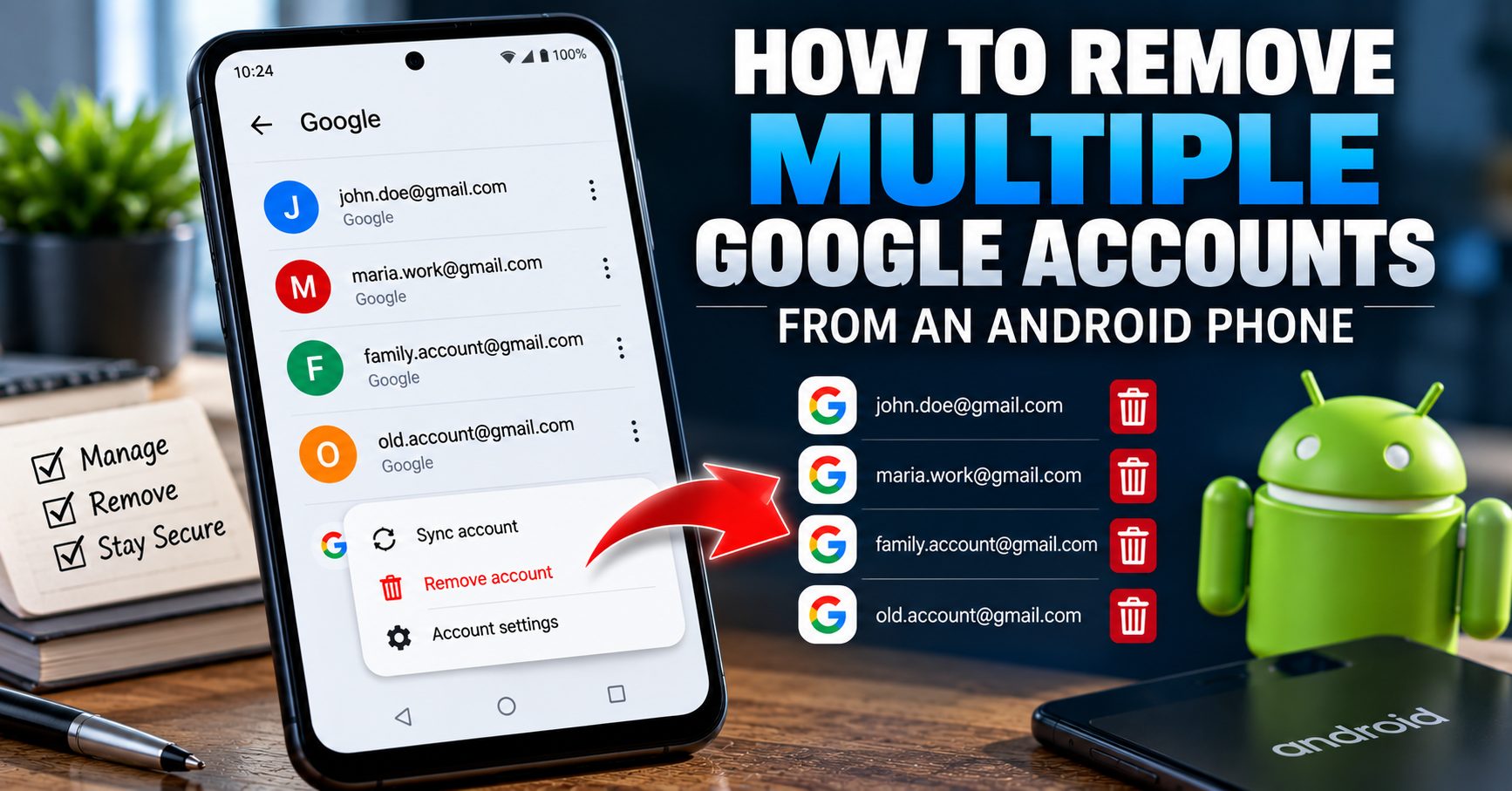
How to Remove Multiple Google Accounts From an Android Phone
Many Android phones have more than one Google account connected to them. You might use one account for personal email, another for work, and a third for apps, media, or an older Gmail address. When you no longer need one of those accounts on the phone, Android lets you remove it without deleting the Google account itself.
The important part is knowing which account you are removing and understanding what happens to its synchronized information on the device.
This guide explains how to remove multiple Google accounts from an Android phone, how to remove them individually, what happens to Gmail, contacts, calendars and other synced information, and what you should check before removing every account from the device.
Can You Have Multiple Google Accounts on One Android Phone?
Yes. Android supports multiple Google accounts on the same device.
For example, a single phone might contain:
- A personal Gmail account.
- A second personal Google account.
- A work-related Google account.
- An older Google account used for apps or purchases.
- A family member’s account temporarily added to the device.
Each account can have its own Gmail, contacts, calendar information, Google Drive files, Google Photos content, Play Store information and other account-specific data.
Because these accounts are separate, removing one does not normally remove the others.
What Does Removing Multiple Google Accounts Mean?
Removing multiple Google accounts means disconnecting those accounts from the Android device. It does not mean permanently deleting the Google accounts themselves.
This distinction is essential.
When you remove an account from Android, you are telling the phone that the account should no longer be connected to that particular device.
The Google account can still exist online and can generally be used on another phone, tablet or computer.
Think of the process as removing the phone’s access to the account rather than destroying the account.
How to Remove Multiple Google Accounts From Android
Android normally requires you to remove accounts individually. There is not necessarily one universal button that removes every Google account at once.
The general process is:
- Open Settings.
- Open Passwords & accounts, Accounts, Users & accounts, or a similar account-management section.
- Review the Google accounts listed on the phone.
- Select the first Google account you want to remove.
- Tap Remove account.
- Confirm the action.
- Return to the account list.
- Select the next Google account.
- Repeat the process until the accounts you no longer need are removed.
The exact menu names can differ between Android versions and manufacturers, so do not worry if your phone does not display the wording exactly as shown above.
Step 1: Open Android Settings
Start by opening the Settings app on the phone.
If your device has a large number of settings and you cannot immediately find account management, use the Settings search function and search for Accounts.
You may also see options such as Manage accounts or Passwords and accounts.
Step 2: Review Every Google Account on the Phone
Before removing anything, stop and review the complete list.
This is especially important if you have used the phone for several years because an older Google account may still be connected even if you rarely use it.
Write down or otherwise identify the accounts before starting if you are unsure which one should remain.
For example:
| Account | Possible Purpose | Action |
|---|---|---|
| Personal Gmail | Email, contacts and personal data | Keep or remove as needed |
| Work Google account | Work email and documents | Remove if no longer required |
| Old Gmail account | Previous apps or services | Review before removing |
| Family member’s account | Temporary access | Remove if no longer needed |
Step 3: Select the First Google Account
Tap the Google account you want to remove.
Do not assume that the first account shown is the account you should remove. Android may display several accounts in the order they were added or according to the device’s current account-management interface.
Verify the email address before continuing.
Step 4: Choose “Remove Account”
Once the correct account is selected, look for Remove account.
Depending on the device, the option may be located inside a menu or behind a three-dot button.
Android may display a warning explaining that information associated with the account will be removed from the device.
Step 5: Confirm the Account Removal
Confirm the removal when Android asks you to do so.
Your phone may request the device’s PIN, password or pattern before completing the operation.
This is a normal security measure. Use the device credentials you already have rather than attempting to bypass the verification.
Step 6: Repeat the Process for the Other Accounts
After the first account has been removed, return to the account-management screen.
The remaining Google accounts should still be listed.
Select the next account and repeat the same process.
Continue until only the Google accounts you actually want to keep are connected to the phone.
Does Removing One Google Account Remove the Others?
No. Removing one Google account does not normally remove the other Google accounts connected to the same Android phone.
For example, if your phone has three Google accounts and you remove one, the other two should remain connected.
This is why you should review the account list again after each removal if your goal is to clean up several old accounts.
What Happens to Gmail When You Remove an Account?
Gmail associated with the removed account will no longer be connected to that account on the phone.
You may stop receiving new Gmail notifications for that account on the device, and locally synchronized account information may disappear from the phone.
The Gmail account itself is not permanently deleted simply because you removed it from Android.
You can normally sign into the same Google account again later if you still have access to it.
What Happens to Google Contacts?
Contacts synchronized with a Google account can stop appearing through that account on the device after the account is removed.
This does not automatically mean the contacts stored in the Google account have been permanently deleted.
Before removing an account that contains important contacts, make sure you understand where those contacts are stored and whether they are synchronized with the correct Google account.
This matters even more when several Google accounts are connected because contacts can be associated with different accounts.
What Happens to Google Calendar?
Calendar information associated with a removed Google account will no longer be synchronized through that account on the phone.
If you have several Google accounts, make sure you know which calendar belongs to which account before removing anything.
This can prevent confusion when a calendar appears to disappear from the phone after an account is disconnected.
What Happens to Google Drive Files?
Removing a Google account from the phone does not mean that your Google Drive account has been deleted.
Files stored in Google Drive remain associated with the Google account unless you separately delete them.
However, the phone will no longer have that account connected for normal Drive access and synchronization.
If the account contains important documents, make sure you can still access the account before removing it.
What Happens to Google Photos?
Google Photos can contain information associated with multiple Google accounts, so removing the wrong account can cause confusion about which photo library is currently available on the phone.
Before removing an account, verify that important photos and videos are backed up to the account you expect.
If you are moving to a new phone, it is particularly useful to identify which Google account contains your photo library before removing accounts from the old device.
Can I Remove All Google Accounts From My Android Phone?
In many cases, you can remove the Google accounts that are connected to an Android device, but the exact behavior can depend on the device and software version.
Android may apply additional security requirements when you attempt to remove the last account, particularly when the device is being prepared for a reset or transfer.
If your goal is to give the phone to someone else, do not stop at removing only one account. Review the complete account list and make sure you have properly prepared the device before performing the final factory reset.
For a detailed guide focused specifically on selling or giving away an Android phone, see How to Remove a Google Account Before Selling Your Android Phone.
What If You Have Three or More Google Accounts?
The process is essentially the same, but a larger number of accounts makes it more important to work carefully.
Use this approach:
- List every Google account currently connected.
- Identify which accounts you still use.
- Check important Gmail, contacts, calendar and Drive information.
- Remove the accounts you no longer need one at a time.
- Review the account list again after each removal.
- Confirm that the account you intend to keep is still connected.
This avoids the common mistake of removing an account simply because its email address is unfamiliar.
How to Tell Which Google Account You Should Keep
If you have accumulated several accounts, deciding which one to keep can be more difficult than removing them.
Look at the services you actually use.
- Which account receives your important Gmail messages?
- Which account contains your contacts?
- Which account contains your Google Photos library?
- Which account contains important Google Drive files?
- Which account do you use for Google Play purchases and apps?
- Which account do you use for calendars?
Do not remove an account simply because you have not opened Gmail for a while. An older account may still contain information or purchases that you want to retain.
Can I Remove an Old Google Account Without Deleting It?
Yes.
This is one of the main reasons Android provides the Remove account function.
You can disconnect an old account from your phone while leaving the Google account itself active.
For example, if you have stopped using an old Gmail address on your phone but still need that account elsewhere, removing it from Android does not require you to delete the account.
What If Android Won’t Let Me Remove a Google Account?
If an account refuses to be removed, there are several legitimate things to check before considering more complicated troubleshooting.
Check the Device Security Credentials
Android may require your PIN, password or pattern before allowing an account to be removed.
Check Whether the Account Is Managed
A work or school account may be subject to organizational policies.
If the phone is managed by an employer, school or another organization, the administrator may control how the account can be removed.
Restart the Phone
A restart can clear a temporary software or synchronization problem.
Check Your Internet Connection
Make sure the phone has a working internet connection when troubleshooting account synchronization or security-related problems.
Check for System Updates
If your Android device has an available official software update, installing it may resolve known Settings or account-management problems.
Avoid installing an unknown application that promises to forcibly remove Google accounts.
What If I Forgot the Password for One of the Accounts?
Do not confuse account removal with password recovery.
If you have forgotten the password for an account, use Google’s official account-recovery process rather than relying on an unofficial “Google account remover.”
If you are still signed into the account on the phone, you should also consider whether the account contains important data before removing it.
For a phone that will eventually be factory reset, having access to the correct Google account credentials is particularly important.
Multiple Google Accounts and Factory Reset Protection
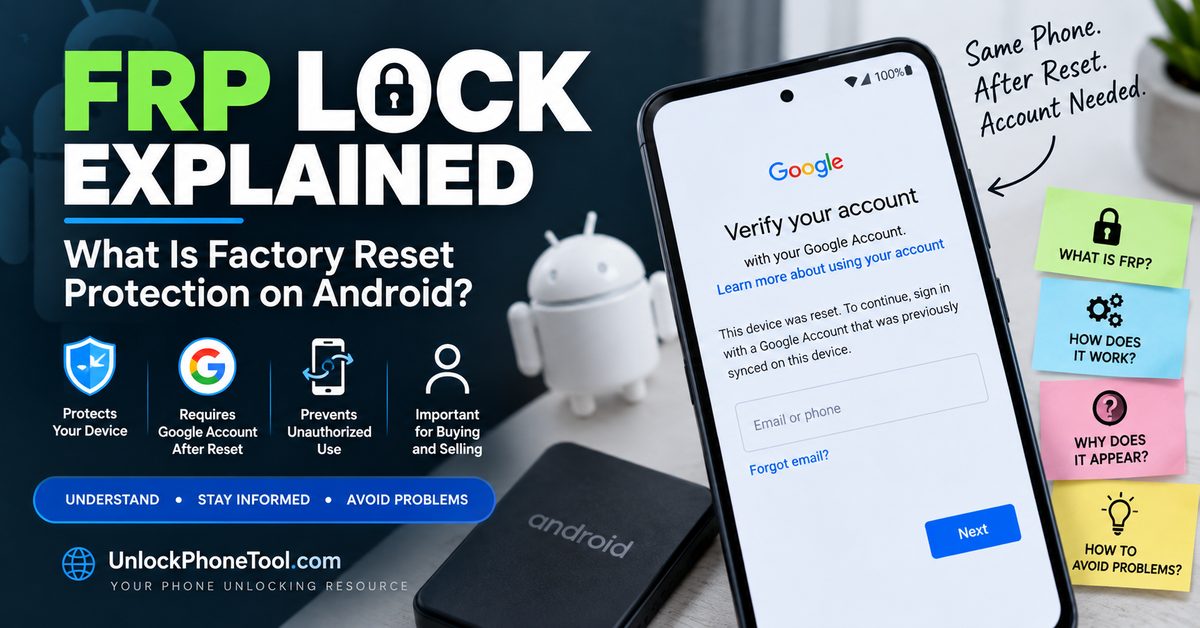
Google’s Factory Reset Protection, commonly known as FRP, is a separate Android security mechanism that can require ownership verification after certain factory-reset situations.
When several Google accounts are present on a phone, account management becomes especially important before the device is reset or transferred to another person.
Our detailed FRP Lock guide explains how Factory Reset Protection works, why Google account verification can appear after a reset, and how FRP differs from other types of phone locks.
Do not confuse legitimate account removal with FRP bypass. If a device belongs to you and is asking for account verification, use the correct account-recovery or manufacturer support process.
Should You Remove Multiple Google Accounts Before Selling Your Phone?
Yes.
If you are selling, trading in, returning or giving away an Android phone, review every Google account on the device instead of removing only the account you use most often.
An old secondary account can easily be overlooked.
A better preparation process is:
- Back up important personal data.
- Review every Google account.
- Remove Google accounts you no longer want connected.
- Remove relevant manufacturer accounts.
- Check work or school accounts.
- Remove personal SIM or eSIM information as appropriate.
- Perform the correct factory reset.
- Verify that the phone starts at the initial setup screen.
For the complete account-removal process before a sale, read our dedicated guide: How to Remove a Google Account Before Selling an Android Phone.
Multiple Google Accounts vs Multiple Phone Unlocks
Having multiple Google accounts on an Android phone has nothing to do with carrier unlocking or network unlocking.
Removing Google accounts will not unlock a phone for another mobile network.
If you are researching NCK codes, SIM Network Unlock PINs or carrier restrictions, those are separate from Google account management. Our NCK code and network unlock guide explains the difference between these unlocking terms.
Multiple Google Accounts vs IMEI Problems
Google account management also has nothing to do with the phone’s IMEI.
Removing an account does not change the IMEI, repair an invalid IMEI, or remove an IMEI-related restriction.
If you are dealing with a legitimate missing, invalid or damaged IMEI after software work, see our guide to IMEI repair and restoration for information about the separate issue.
What Happens After You Remove All Unwanted Google Accounts?
Once the unwanted accounts have been removed, return to the Android account-management screen and verify the remaining list.
This final check is worth doing because it confirms that you removed the intended accounts rather than simply assuming the process worked.
If you are keeping the phone, you can leave your preferred Google account connected and continue using Android normally.
If you are transferring the phone to another person, continue with the rest of the device-preparation process instead of leaving personal information behind.
Important Checklist Before Removing Multiple Google Accounts
| Check | Why It Matters |
|---|---|
| Identify every Google account | Prevents accidentally removing the wrong account |
| Check Gmail | Important messages may belong to a specific account |
| Check contacts | Contacts may be synchronized with different accounts |
| Check Google Photos | Photo libraries can be associated with different Google accounts |
| Check Google Drive | Important documents may belong to one specific account |
| Check Google Play | Apps and purchases may be associated with a particular account |
| Check work or school accounts | Managed accounts can have additional restrictions |
| Check manufacturer accounts | Samsung, Xiaomi and other accounts are separate from Google |
| Back up important data | Prevents unnecessary data loss during device changes or resets |
Common Mistakes When Removing Multiple Google Accounts
Removing the Wrong Account
When several accounts have similar names or email addresses, it is easy to select the wrong one. Always verify the complete email address before confirming removal.
Assuming One Removal Deletes Everything
Removing one account does not normally remove the other Google accounts on the phone. Review the account list after each removal.
Confusing Removal With Account Deletion
Removing an account from Android is not the same as permanently deleting the Google account. If you still need the account elsewhere, simply remove it from the phone rather than deleting it.
Forgetting About Synced Data
Important contacts, calendars, photos and other information can be associated with different accounts. Check where important data is stored before removing accounts.
Removing Accounts Without a Backup
If you are changing phones or preparing for a factory reset, make sure important information is backed up before removing accounts or erasing the device.
Using an Unofficial Account Removal Tool
A website claiming to remove every Google account or bypass Android security with a universal tool should be treated with caution. Normal account removal should be performed through Android’s own Settings whenever possible.
Frequently Asked Questions
Can I have multiple Google accounts on one Android phone?
Yes. Android supports multiple Google accounts on a single device, allowing different accounts to be used for services such as Gmail, Contacts, Calendar, Drive and Google Play.
Can I remove just one Google account?
Yes. You can normally select a specific Google account and remove it without removing the other accounts connected to the phone.
Does removing one Google account remove all my accounts?
No. Other Google accounts normally remain connected unless you remove them individually.
Does removing a Google account delete Gmail?
No. Removing the account from the phone does not permanently delete the Google account or Gmail service.
Will removing an account delete my Google Photos?
Removing the account from the phone does not automatically delete the Google account’s online photo library. However, make sure important photos are backed up and that you know which account contains them.
Can I add the account again later?
Yes. If the Google account still exists and you have the required credentials, you can normally add it to the Android phone again.
Why does Android ask for my PIN when removing an account?
Android may require your device security credentials to confirm that an authorized person is making the account change.
Can I remove all Google accounts before selling my Android phone?
Yes, and reviewing all accounts is an important part of preparing a phone for another owner. You should also handle other manufacturer accounts and the factory reset correctly.
Does removing multiple Google accounts unlock my phone?
No. Google account removal is different from carrier unlocking, SIM unlocking, bootloader unlocking and other device-unlock procedures.
Does removing Google accounts change the IMEI?
No. Google account removal does not change or repair the phone’s IMEI.
Final Thoughts
Removing multiple Google accounts from an Android phone is mainly a matter of identifying the accounts correctly and removing them one at a time.
The most important thing to remember is that removing an account from Android does not mean deleting the Google account permanently. The account can remain active and can usually be used on other devices.
Before removing several accounts, review your Gmail, contacts, calendar, Google Photos, Drive and other important information. If you are keeping the phone, simply leave the accounts you still need connected. If the phone is being sold, traded in, returned or given away, use a complete account-removal and factory-reset checklist.
And remember that Google account management, FRP, carrier unlocking, IMEI issues and bootloader unlocking are different parts of Android device management. Treating them as separate processes will help you choose the correct solution instead of relying on outdated universal unlock claims.