FRP Lock Explained: How to Remove a Google Account Before Selling Your Android Phone
Selling or giving away an Android phone involves more than deleting your photos and performing a factory reset. If a Google account is still associated with the device when you reset it, the next owner may encounter Google account verification during setup because of Factory Reset Protection (FRP).
The safest approach is to prepare the phone before you perform the final factory reset. That means backing up your information, removing your Google account from the device, checking other accounts and services, and only then wiping the phone.
This guide explains exactly what removing a Google account from an Android phone does, why it matters for FRP, what happens to your Google account itself, how to handle multiple accounts, and what else you should check before handing the phone to its new owner.
If you first want to understand the security feature behind this process, read our FRP Lock Explained: What Is Factory Reset Protection on Android? guide.
Why Should You Remove Your Google Account Before Selling an Android Phone?
The Google account on your phone is more than an email address displayed in the settings menu. It can be connected to Google services, synchronized data, app purchases, contacts, backups, device protection and other features.
When you give the phone to another person, you do not want your account to remain configured on the device.
There is also an important FRP consideration.
Android uses Google account information as part of its device-protection system. If a protected phone is reset without properly preparing it for transfer, the next setup can require verification associated with the previous account.
Google’s own Android guidance explains that device protection can be turned off by removing the Google Account from the device.
In other words, removing the Google account before the final reset is an important part of preparing an Android phone for a new owner.
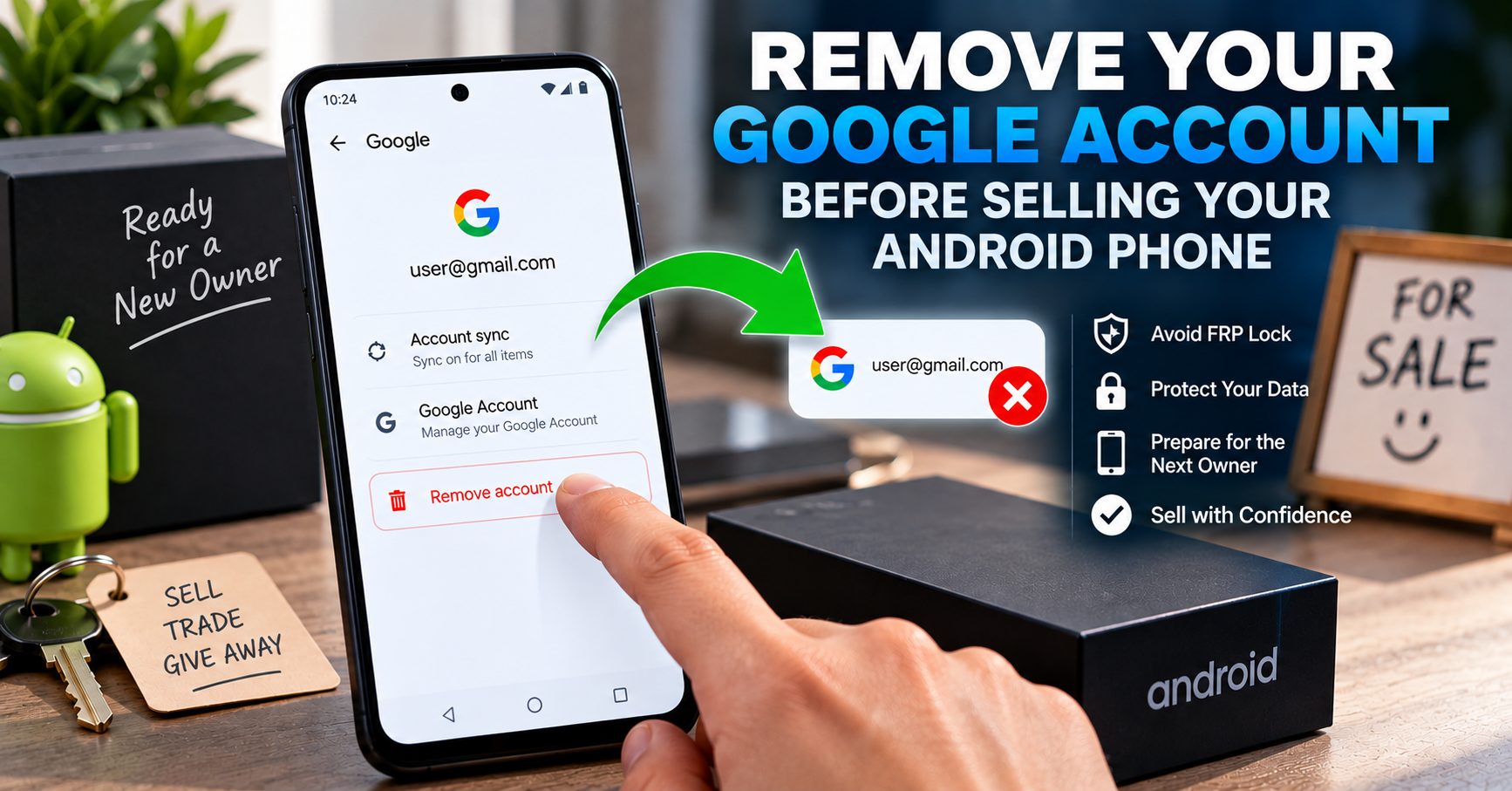
Does Removing a Google Account Delete the Google Account?
No.
This distinction is extremely important.
When you remove a Google account from your Android phone, you are normally removing that account’s connection to the device. You are not permanently deleting the Google account itself.
Your Gmail address, Google Drive files, Google Photos content, YouTube information and other cloud-based information are not automatically deleted simply because you removed the account from the phone.
You can normally sign into the same Google account again on another phone, tablet or computer.
Think of the process as:
- Remove account from phone: disconnects the account from that particular device.
- Delete Google account: permanently closes the Google account and can affect the data and services associated with it.
If your goal is simply to sell your phone, you generally want to remove the account from the device, not delete your Google account.
What Happens When You Remove a Google Account From Android?
Removing a Google account from the phone changes what is available on that device.
Depending on the services you use, removing the account can affect:
- Gmail synchronization
- Google Contacts synchronization
- Google Calendar synchronization
- Google Drive access through that account
- Google Photos account access
- Play Store account access
- Google account-related device synchronization
This does not mean your cloud information has suddenly been erased.
The important difference is that the account is no longer configured on the phone you are about to give to someone else.
How to Remove a Google Account From an Android Phone Before Selling It
The exact menu names can vary between Android manufacturers and software versions, but the general process is similar.
Step 1: Open Android Settings
Open the Settings application on your phone.
Look for a section called Accounts, Passwords & accounts, Users & accounts, or a similar account-management option.
Samsung Galaxy phones commonly use Accounts and backup followed by Manage accounts. Samsung’s current support documentation uses this account-management path for removing Google accounts from Galaxy devices.
Step 2: Open Your Account List
Open the section that displays the accounts currently configured on your phone.
You may see several types of accounts, including:
- Samsung
- Microsoft
- Outlook
- Email accounts
- Work or school accounts
- Other app-specific accounts
Do not assume that removing one Google account automatically removes every other account from the phone.
Step 3: Select the Google Account
Tap the Google account you want to remove.
If you have more than one Google account configured on the phone, check each one individually.
Step 4: Choose Remove Account
Look for Remove account and confirm the action when Android asks you to do so.
Some devices may ask you to enter your screen PIN, password, pattern, or another form of authentication before allowing the account to be removed.
This is a security measure designed to make it harder for another person to change account settings on a phone that is already unlocked.
Step 5: Confirm That the Account Is Gone From the Device
Return to the account-management screen and check the list again.
If you have multiple Google accounts, repeat the process until the accounts you no longer want associated with the phone have been removed.
Samsung specifically advises repeating the account-removal process when multiple Google accounts are present on a device. :contentReference[oaicite:3]{index=3}
How to Remove a Google Account From a Samsung Galaxy Before Selling It
Samsung Galaxy phones deserve special attention because they can contain both a Google account and a Samsung account.
On many current Galaxy devices, the Google-account removal path is:
- Open Settings.
- Tap Accounts and backup.
- Tap Manage accounts.
- Select the Google account.
- Tap Remove account.
- Confirm the removal.
Samsung notes that available screens and settings can vary depending on the device and software version. :contentReference[oaicite:4]{index=4}
Do not stop after removing the Google account if you are preparing the Galaxy for another owner. Check whether a Samsung account and other accounts are still configured on the phone.
Do You Also Need to Remove a Samsung Account?
If you are selling a Samsung Galaxy phone, yes, you should review the Samsung account separately.
A Samsung account is not the same thing as a Google account.
Removing a Google account does not automatically mean that your Samsung account has been removed from the device.
Samsung’s support documentation specifically distinguishes between removing a Samsung account and removing a Google account from a Galaxy device. :contentReference[oaicite:5]{index=5}
Before handing over a Galaxy phone, therefore, check both account types.
What About Xiaomi, Redmi, POCO and Other Android Phones?
The same principle applies to other Android manufacturers, but the names of the menus and manufacturer accounts can differ.
A Xiaomi phone, for example, can have both a Google account and a Xiaomi account.
Other manufacturers may provide their own cloud, backup, synchronization or device-management accounts.
That means you should not treat Google account removal as the entire phone-transfer process.
The goal is to remove your personal accounts from the device and leave the phone ready for the next owner.
What If There Are Multiple Google Accounts on the Phone?
It is common for one Android phone to contain more than one Google account.
You might have:
- A personal Gmail account
- A second personal Google account
- A work-related Google account
- A school account
- An older Google account that is no longer actively used
Do not remove only the account you use most frequently and assume the phone is ready for sale.
Open the account-management section and review the entire list.
If multiple Google accounts are still configured, remove the ones that should no longer remain on the device.
What About Work or School Google Accounts?
Work and school accounts can behave differently from a normal personal Google account.
A managed device may have additional policies controlled by an organization. In some cases, an administrator or device-management system can control what the user is allowed to remove.
If the phone belongs to an employer or educational organization, do not simply perform a factory reset and assume ownership has been transferred.
The organization should complete its own device-management and account-removal procedures first.
Should You Remove Your Google Account Before or After the Factory Reset?
Remove the Google account before the final factory reset when you are preparing the phone for another owner.
This is the key sequence to remember:
- Back up your data.
- Transfer anything you want to keep.
- Remove your Google account.
- Remove relevant manufacturer and other personal accounts.
- Remove your SIM card.
- Review eSIM and mobile-plan information.
- Perform the factory reset.
- Leave the phone at the initial setup screen for the new owner.
Samsung’s current guidance specifically tells users who intend to give the device to someone else to remove the Google account before resetting it because of Factory Reset Protection. :contentReference[oaicite:6]{index=6}
Why You Should Not Factory Reset First
A factory reset is designed to erase personal information from the phone. However, the reset itself is not the same as preparing the device for transfer.
If you reset the phone first and then discover that it is requesting the previous Google account during setup, you may have created an unnecessary problem for the next owner.
This is especially common when people use the recovery menu or physical-button reset without first removing their accounts.
The better approach is to prepare the phone while you still have normal access to Android settings.
What If You Already Factory Reset the Phone?
If you already performed a factory reset and the phone is asking for the previous Google account, do not assume that a network unlock code, IMEI number, or bootloader tool will solve the problem.
FRP is a different type of device protection.
If the account belongs to you, use the appropriate Google account-recovery process and complete the verification required by the device.
If you are selling the phone and the reset has already been performed, you may need to complete the legitimate setup or recovery process before transferring the device.
If you bought a used phone that is asking for someone else’s Google account, contact the seller or previous owner rather than trying to obtain their credentials.
Does Removing the Google Account Remove FRP?
For a phone you own and are preparing for transfer, removing the Google account from the device is the supported way to turn off the relevant device-protection association.
Google’s Android documentation states that device protection can be turned off by removing the Google Account from the device. :contentReference[oaicite:7]{index=7}
This is why the order of operations matters.
Remove the account first, then perform the final factory reset.
For a deeper explanation of how this protection works, see our FRP Lock Explained guide.
Do You Need to Remove Your Google Account From Google Servers?
No, not if your goal is simply to sell the phone.
You generally want to remove the account from the device, not permanently delete your Google account.
Your Google account can remain active for use on another phone, tablet or computer.
The important objective is to make sure the old phone is no longer configured with your personal account before it changes hands.
What About Google Photos, Gmail and Google Drive?
Removing your Google account from the phone does not mean you have to delete your cloud data.
Your Gmail messages, Google Drive files, Google Photos library and other information stored with your Google account can remain associated with the account.
What changes is the account’s presence on that particular phone.
Before removing the account, however, make sure that anything stored locally on the phone has been backed up or transferred.
Back Up Your Android Phone Before Removing the Account
Account removal and factory reset are separate from data backup.
Before you start removing accounts, check that you have everything you want to keep.
Pay particular attention to:
- Photos and videos
- Contacts
- Messages
- Documents
- Downloads
- WhatsApp or other messaging backups
- Authenticator applications
- Two-factor authentication information
- Notes and locally stored files
- eSIM information and mobile-plan details
Do not assume that every application stores all of its information in your Google account.
Some applications use their own cloud systems, while other data may exist only locally on the phone.
Do Not Forget Your Authentication Apps
This is one of the easiest things to overlook before selling a phone.
If the Android device contains an authenticator application used for two-factor authentication, make sure you have transferred or backed up your authentication method before wiping the phone.
Otherwise, you could remove the device and then discover that an important account requires a verification code that was stored only on the old phone.
This is particularly important for email, banking, social media, work and other accounts where two-factor authentication is enabled.
What Else Should You Remove Before Selling an Android Phone?
Google is only one part of the preparation process.
Before selling or giving away the device, review the following:
- Google accounts
- Samsung, Xiaomi or other manufacturer accounts
- Microsoft and Outlook accounts
- Work or school accounts
- Email accounts
- Social-media accounts
- Payment applications
- Authenticator applications
- Saved Bluetooth devices
- Physical SIM card
- eSIM and mobile plans
- Files stored locally on the phone
The objective is not merely to make the home screen look empty. The objective is to remove your personal access and prepare the device for its next legitimate owner.
Should You Remove the SIM Card Before Selling the Phone?
Yes, in most normal phone-sale situations you should remove your physical SIM card.
Your SIM is associated with your mobile service and may contain information or authentication functions that you do not want to transfer to another person.
If the phone uses an eSIM, review the mobile plans installed on the device and follow your carrier’s instructions for transferring or removing the plan.
Remember that SIM removal and Google account removal solve completely different problems.
Does Removing a Google Account Unlock the Phone From a Carrier?
No.
Removing a Google account does not automatically remove a carrier or network restriction.
A phone can have its Google account completely removed and still be carrier locked.
Conversely, a phone can be carrier unlocked and still have Google account protection associated with it.
If you are investigating network unlocking, see our NCK and Network Unlock Guide.
Does Removing a Google Account Change the IMEI?
No.
Removing a Google account does not change the phone’s IMEI.
The IMEI is a device identifier and is separate from the Google account configuration.
If you are investigating an IMEI that is missing, invalid or displaying incorrectly after software work, see our IMEI Repair and Recovery Guide.
What About the Bootloader?
Google account removal is also completely separate from bootloader status.
You do not need to unlock the bootloader to remove a Google account before selling a normal Android phone.
Likewise, unlocking the bootloader does not represent a legitimate method of removing a Google account from a device.
If your question is specifically about bootloader status or unlocking, our Android Bootloader Unlock Guide covers that separate topic.
What Should the Phone Look Like When You Are Finished?
After you have backed up your information, removed your accounts and completed the factory reset, the phone should be ready for the new owner to begin the normal Android setup process.
You should not sign back into your Google account after the final reset.
Do not leave your SIM card inside the phone, and make sure any eSIM or mobile-plan transfer has been handled correctly.
The phone should essentially be in the state you would expect when receiving a properly prepared second-hand device: powered on or ready to power on, with the initial setup process waiting for the new owner.
Android Phone Selling Checklist
Before handing your Android phone to the buyer, run through this checklist:
| Check | What to Do |
|---|---|
| Backup | Save photos, contacts, documents and important application data. |
| Google account | Remove every Google account that should no longer be associated with the device. |
| Manufacturer account | Remove Samsung, Xiaomi or other manufacturer accounts where applicable. |
| Work account | Remove personal work/school profiles according to the organization’s requirements. |
| Authentication | Transfer authenticator and two-factor authentication methods. |
| SIM | Remove the physical SIM card. |
| eSIM | Review and transfer or remove mobile plans as appropriate. |
| Personal data | Check downloads, files, photos and other locally stored information. |
| Factory reset | Perform the final reset after accounts have been removed. |
| Final check | Confirm the phone starts at the initial setup screen for the new owner. |
Common Mistakes When Preparing an Android Phone for Sale
Resetting the Phone Before Removing the Google Account
This is one of the biggest mistakes because the reset can leave the next setup process requiring account verification.
Assuming a Factory Reset Deletes the Google Account
A factory reset erases data from the phone. It should not be confused with permanently deleting your Google account.
Removing Only One Google Account
If several Google accounts are configured, check the complete account list rather than assuming that one removal is enough.
Forgetting the Manufacturer Account
Samsung, Xiaomi and other manufacturers can have their own account systems. Review those accounts separately.
Forgetting Two-Factor Authentication
If the old phone generates authentication codes, transfer the relevant accounts before wiping the device.
Leaving the SIM Card Inside
A SIM card is part of your mobile service and should normally stay with you unless it is intentionally being transferred.
Assuming FRP and Carrier Unlock Are the Same
They are not. Google account protection and carrier network restrictions are separate systems.
Frequently Asked Questions
How do I remove my Google account before selling my Android phone?
Open Android Settings, find the account-management section, select your Google account and choose Remove account. The exact menu names vary by manufacturer and Android version. After removing the relevant accounts, perform the factory reset.
Does removing a Google account delete the account permanently?
No. Removing the account from the phone normally disconnects it from that device. It does not permanently delete the Google account itself.
Should I remove my Google account before a factory reset?
Yes, if you are preparing the phone for another owner. Removing the account first helps prevent device-protection and account-verification problems during the next setup.
How many Google accounts should I remove before selling my phone?
Review the complete account list and remove every personal Google account that should no longer remain associated with the phone.
What happens if I forget to remove my Google account before selling the phone?
The next owner may encounter Google account verification during setup after the factory reset. If that happens, the previous owner may need to complete the legitimate account-removal or recovery process.
Does removing a Google account remove FRP?
For a phone you own, removing the Google account from the device is the supported way to turn off the relevant Android device-protection association before transferring the phone.
Can I remove my Google account without deleting Gmail?
Yes. Removing the account from the phone is different from permanently deleting the Google account. Your Gmail and other cloud services can remain available when you sign into the account elsewhere.
Do I need to remove my Samsung account too?
If you are selling a Samsung Galaxy phone, review and remove the Samsung account separately. A Samsung account and Google account are different accounts.
Should I remove the SIM card before selling my Android phone?
Yes. Unless you are intentionally transferring the mobile service, remove your physical SIM card. If you use an eSIM, review the mobile plan and follow your carrier’s transfer or removal process.
Does removing a Google account unlock a carrier-locked phone?
No. Google account removal and carrier unlocking are separate processes.
Does removing a Google account change the IMEI?
No. The IMEI is a device identifier and is not changed simply by removing a Google account.
Do I need to unlock the bootloader before selling my Android phone?
No. Bootloader unlocking is unrelated to the normal process of removing accounts and preparing an Android phone for a new owner.
Final Thoughts
Preparing an Android phone for sale is not just a matter of tapping Factory Reset.
The safest sequence is to back up your information, remove your Google account, review other accounts and services, remove your SIM, handle any eSIM or mobile-plan information, and then perform the final factory reset.
The most important distinction is that removing a Google account from the phone does not mean deleting your Google account from Google’s servers. You are simply disconnecting the account from the device you are transferring.
Taking these steps before the reset can also help prevent the next owner from encountering unnecessary FRP or Google account verification problems.
If you want to understand the security system behind this process in more detail, continue with our FRP Lock Explained guide. For other types of phone restrictions, you can also explore our NCK and Network Unlock Guide, IMEI Repair and Recovery Guide, and Android Bootloader Unlock Guide.