How to Check Which Google Accounts Are Linked to Your Android Phone
If you have used an Android phone for several years, you may have more than one Google account connected to it without realizing it. An old Gmail address, a work account, a second personal account, or an account used for Google Play can remain on the device long after you stop using it regularly.
Before removing accounts, selling your phone, troubleshooting synchronization, or performing a factory reset, it is worth checking exactly which Google accounts are connected to the device.
This guide explains how to find Google accounts on an Android phone, how to identify multiple accounts, how to check which account is being used by Google services, and why the list of accounts on your phone is different from the list of devices shown inside your Google Account.
What Does It Mean for a Google Account to Be Linked to an Android Phone?
When you add a Google account to an Android phone, that account can provide access to Google services and synchronize information with the device.
Depending on the services you use, account information can include:
- Gmail
- Google Contacts
- Google Calendar
- Google Drive
- Google Photos
- Google Play
- Google services and app data
- Other Google account settings and synchronized information
Android can have multiple Google accounts connected at the same time. Each account remains separate, even though they are being used on the same physical phone.
That is why checking the account list before removing anything is important.
How to See Which Google Accounts Are on Your Android Phone
The most direct way to see Google accounts connected to the Android device is through the phone’s account settings.
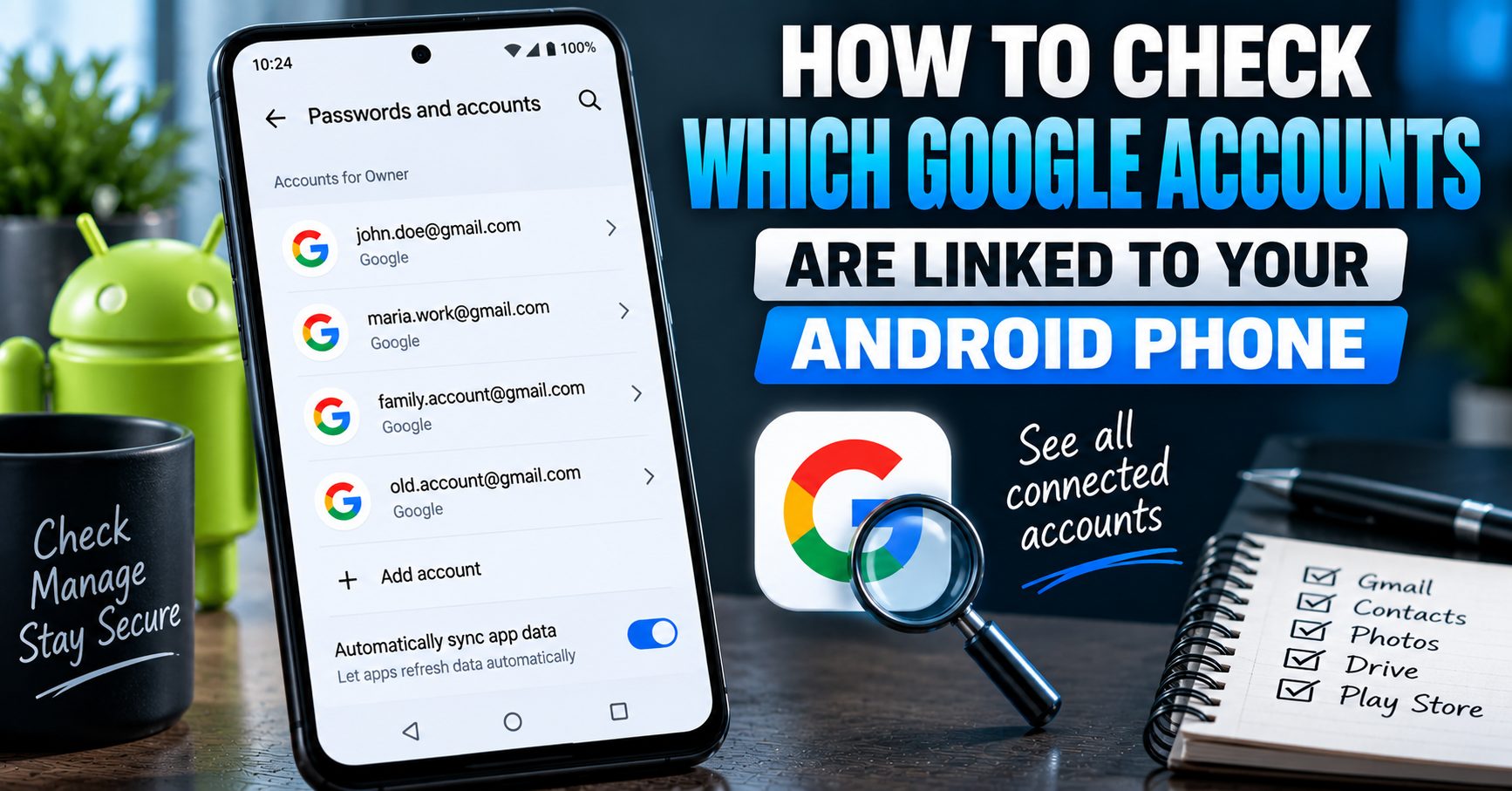
The exact menu name can vary depending on your Android version and manufacturer, but the current Android help documentation uses Passwords and accounts as the main path. Other devices may show Users and accounts, Passwords, passkeys and accounts, or Manage accounts.
Step 1: Open Settings
Open the Settings app on your Android phone.
Step 2: Open the Account Settings
Look for one of these options:
- Passwords and accounts
- Passwords, passkeys and accounts
- Users and accounts
- Manage accounts
- Accounts
If you cannot find the option, use the search field inside Settings and search for Accounts.
Step 3: Review the Accounts Listed on the Phone
Once you open the account-management section, Android will show the accounts associated with the current device or user profile.
Look specifically for accounts identified as Google.
If you have several Google accounts, you may see multiple Gmail addresses listed separately.
Step 4: Check Each Google Account
Tap an account if you need to confirm which Google account it is.
This is useful when several accounts look similar or when you have forgotten why an older Gmail address was added to the phone.
Do not remove an account simply because you do not recognize it immediately. First determine whether it is connected to important Gmail, contacts, photos, files, purchases, or another service you still use.
How to Find All Google Accounts on an Android Phone
If you suspect that several Google accounts are connected to your phone, do not rely on the Gmail app alone.
The Android account-management screen is a better starting point because it shows accounts associated with the device rather than only accounts currently selected inside one application.
For example, you might have:
| Google Account | Possible Use |
|---|---|
| Primary Gmail account | Personal email, contacts and calendar |
| Secondary Gmail account | Older personal email or subscriptions |
| Work Google account | Work email, documents or calendar |
| Old Google account | Previous phone, apps or Google services |
The presence of an account on the phone does not necessarily mean that you actively use it every day.
How to Check Google Accounts From the Gmail App
The Gmail app can also help you identify Google accounts that you have added to Gmail.
Open Gmail and tap your profile picture or account icon.
You may see multiple Google accounts listed in the account switcher.
This can be useful as a quick check, but it should not be treated as the complete device account list.
An account-management screen inside Android is the better place to verify which accounts are actually added to the device.
Why Gmail May Not Show the Same Accounts as Android Settings
Google applications can have their own account-selection interfaces, while Android maintains device-level account information.
This means the account list you see inside Gmail is not necessarily the best way to determine every account associated with the Android device.
If your goal is to prepare the phone for a reset, sale, trade-in, or account cleanup, always check the Android account settings as well.
How to Check Which Google Account Is Used for Google Play
Google Play can use one of the Google accounts added to the device.
Open the Google Play Store and check the profile or account menu to see which account is currently selected.
This is useful if you have multiple accounts because app downloads, purchases, subscriptions, and other Play-related information may be associated with a particular Google account.
Do not assume that the account you use for Gmail is automatically the same account you use for every Google service.
How to Check Which Google Account Is Used for Google Photos
Google Photos can also help you identify which account is currently active.
Open Google Photos and check the account shown through the profile menu.
If you have used multiple Google accounts, pay particular attention to this before removing an account from the phone.
You may have photos or backups associated with an account that you rarely use for email.
Before removing that account, make sure you know where your important photos and videos are stored.
How to Check Which Google Account Is Used for Contacts
Contacts can be more complicated when multiple Google accounts are connected.
Some contacts may be stored locally on the phone, while others may be synchronized with a specific Google account.
If you are planning to remove an account, first check which account is associated with important contacts.
This is especially important when switching phones because removing an account from Android removes the account’s associated information from the device.
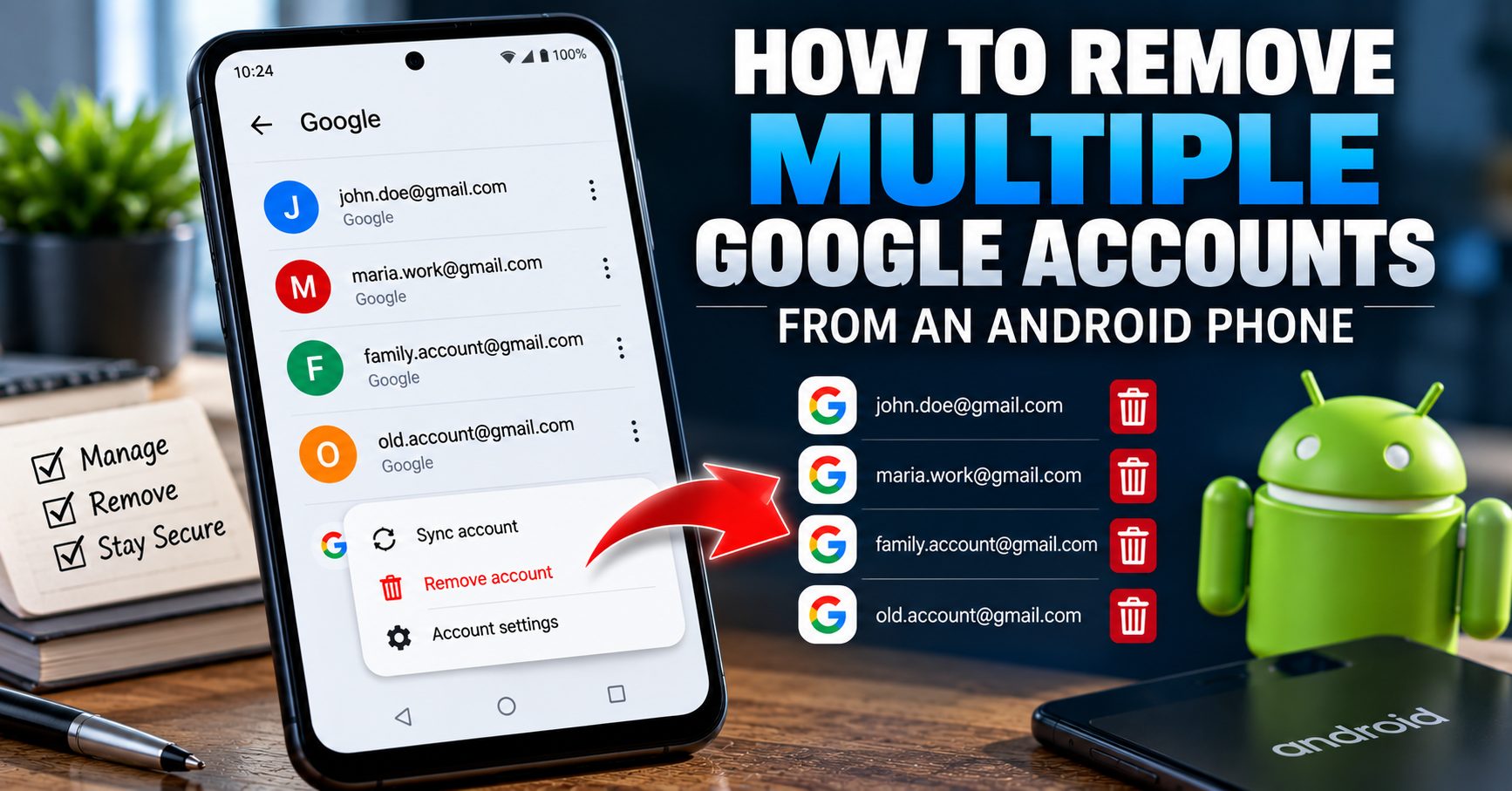
If you want to understand the next step after identifying the accounts, see our guide on how to remove multiple Google accounts from an Android phone.
How to Check Google Accounts From Android Settings Before Removing One
If your purpose is to remove an old or unused Google account, do not start by deleting accounts at random.
Use this process instead:
- Open Android Settings.
- Open the account-management section.
- Identify every Google account listed.
- Write down or otherwise verify the email addresses.
- Check Gmail, Contacts, Calendar, Photos and Drive for accounts you still use.
- Identify the account you actually want to remove.
- Only then start the account-removal process.
This simple review can prevent accidental removal of the wrong account.
What Is the Difference Between an Account on Your Phone and a Device in Your Google Account?
This is one of the most important distinctions in this topic.
There are two different things you may be checking:
- Google accounts added to the Android phone
- Devices that have access to a particular Google account
The Android Settings account list tells you which accounts are added to the device.
Google’s account security page, on the other hand, lets you see phones, computers and other devices where a particular Google account is currently signed in or was recently used.
These lists answer different questions.
How to Check Which Devices Have Access to Your Google Account
If you are concerned that an old phone still has access to your Google account, check the account’s device activity separately.
Sign in to your Google Account and open the security section. Under Your devices, Google provides a Manage all devices view where you can review devices and sessions associated with the account.
Google explains that this list can include devices where you are currently signed in as well as devices or sessions that were used recently. Multiple sessions can sometimes appear for the same device.
If you find a device that you no longer own or do not recognize, you can use the account-management controls to sign out of it.
This is different from checking which accounts are physically added to your current Android phone.
Why the Google Account “Your Devices” List Can Be Confusing
Seeing an old Android phone under Your devices does not necessarily mean that the phone is currently sitting somewhere with an active Gmail app open.
Google may show recent sessions and device activity, and multiple sessions can sometimes relate to the same physical device.
Likewise, removing a Google account from your Android phone does not mean every historical device entry instantly disappears from every Google account activity view.
When investigating account access, look at the device details and sign-in status rather than relying only on the device name.
How to Check for an Old Android Phone Connected to Your Google Account
If you previously owned another Android phone, it is worth reviewing the devices associated with your Google Account.
Open your Google Account security settings and review Your devices.
Look for:
- Old Android phones
- Phones you sold or gave away
- Devices you no longer recognize
- Duplicate-looking sessions
- Recent sign-ins from unfamiliar devices
If a device is no longer yours, use the available Google account controls to sign out where appropriate.
If you see activity that you do not recognize, treat it as a security issue rather than simply an account-cleanup problem.
How to Tell Which Google Accounts Are Still Active on the Phone
Finding an account in Android Settings tells you that it is associated with the device, but it does not necessarily tell you how frequently you use it.
To determine whether an account is still important, check the services connected to it.
Check Gmail
Look for recent messages and confirm whether the account is still receiving email that you need.
Check Google Photos
Verify whether the account contains your photo backup or other important media.
Check Google Drive
Look for documents and files that you may still need.
Check Contacts
Determine whether important contacts are synchronized with the account.
Check Google Calendar
Make sure appointments and events are not tied to an account you are about to remove.
Check Google Play
Review the account used for apps, purchases and subscriptions if those services are important to you.
Can an Android Phone Have Multiple Google Accounts?
Yes. Android supports multiple Google accounts within the same user profile.
Each account can maintain its own Google services and synchronized information.
This is useful for people who separate personal and work accounts or who maintain more than one Gmail address.
The important thing is that multiple accounts should be treated individually. Removing one account does not normally mean that every other Google account on the device is removed.
If you need to clean up several accounts, our dedicated guide covers removing multiple Google accounts from Android.
How to Check Which Account Is the Main Google Account
Android does not necessarily present one universal “main Google account” label that works across every phone and Android version.
Instead, different Google services may use different selected accounts.
For example, the account selected in Google Photos can differ from the account selected in Gmail or Google Play.
For this reason, it is more useful to identify all accounts connected to the device and then determine which account is important for each service.
This approach is much safer than assuming the first account in a list is the only or primary account that matters.
How to Check Google Accounts Before a Factory Reset
If you are planning to factory reset an Android phone, account checking should happen before you erase the device.
First review the Google accounts in Android Settings.
Then check important data associated with each account.
If you are selling, trading in, returning, or giving away the phone, you should also properly remove your accounts before the final reset.
This matters because Android’s Factory Reset Protection can require ownership verification after certain factory-reset situations.
For a detailed explanation of FRP and why Google account verification can appear after a reset, read our FRP Lock and Factory Reset Protection guide.
How to Check Accounts Before Selling an Android Phone
Checking the account list is one of the easiest steps to overlook when preparing a phone for another owner.
Before selling the device, check:
- All Google accounts
- Samsung or other manufacturer accounts
- Work or school accounts
- Email accounts
- Google Photos and other cloud data
- Contacts and calendars
- Google Play accounts
After identifying the accounts, remove the ones that belong to you before completing the final factory reset.
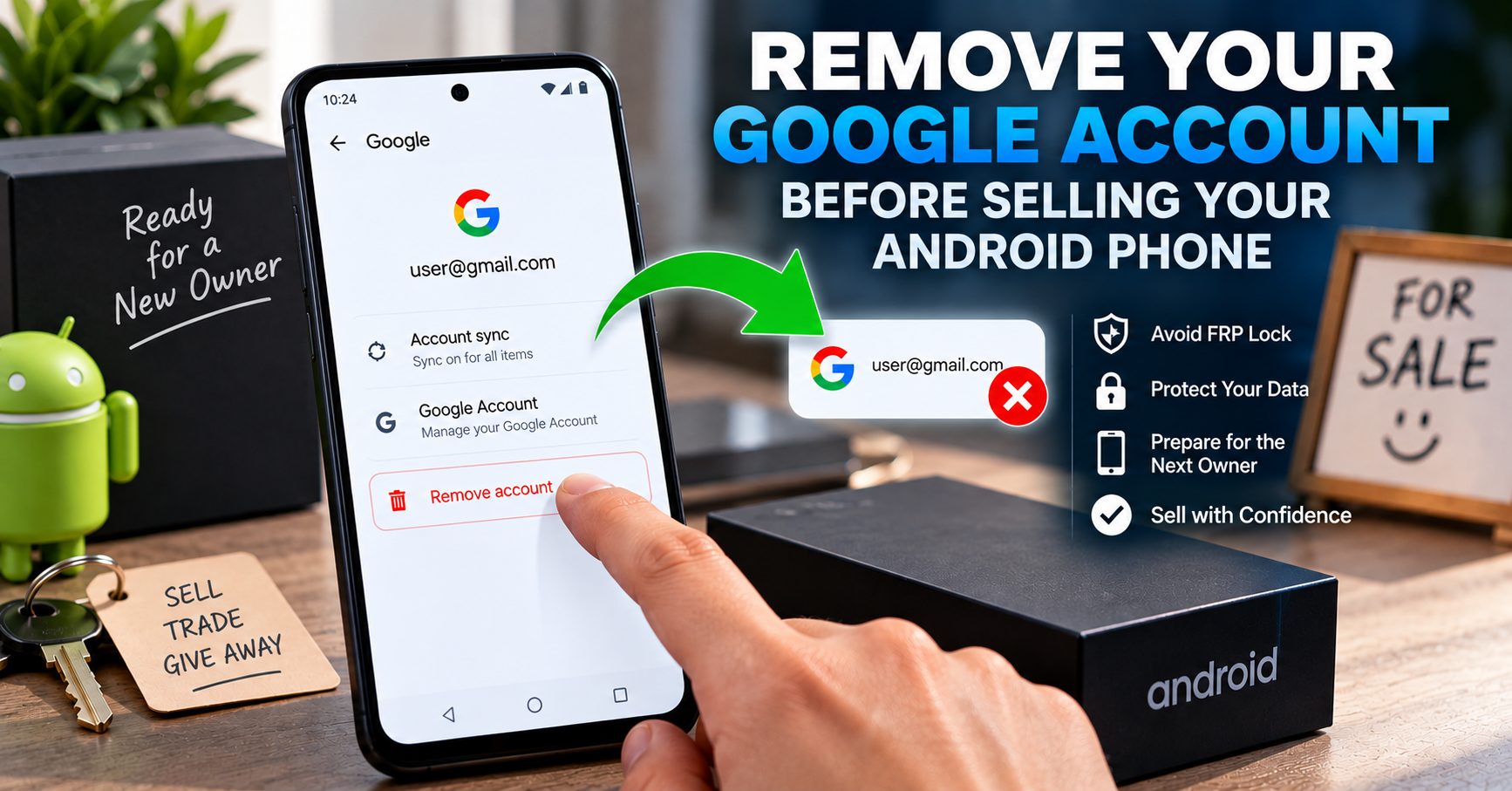
Our guide on removing a Google account before selling an Android phone covers the dedicated preparation process.
What If You Find a Google Account You Don’t Recognize?
Do not immediately delete or remove an unfamiliar account without first determining why it is present.
Possible explanations include:
- An old personal account
- A work or school account
- A family member’s account
- An account added temporarily
- An account used for Google Play or another service
If the phone belongs to you and you still cannot identify the account, review the email address and associated Google services before taking action.
If the device was purchased used and appears to contain another person’s account, that is a different situation. You should not attempt to bypass another person’s account protection.
Can I Check Google Accounts Without Removing Them?
Yes.
You can review the accounts connected to an Android phone without removing them.
Simply open the account-management section in Settings and review the Google accounts listed there.
This is the safest first step when you are trying to understand how many accounts are connected to the phone.
You only need to select Remove account if you have already decided that a particular account should be disconnected from the device.
What Happens If I Remove the Wrong Google Account?
Removing an account from Android disconnects that account’s associated information from the device. Google states that removing an account from Android removes associated information such as email, contacts and settings from the device.
That does not mean the Google account itself has necessarily been permanently deleted.
If you accidentally remove an account, you can generally add it back to the phone if you still have access to the account and the required credentials.
However, it is much better to identify the correct account before removing it than to discover later that important information was associated with it.
Checking Google Accounts vs Removing Google Accounts
These are two separate tasks.
| Task | Purpose |
|---|---|
| Check accounts on Android | Identify which Google accounts are connected to the device |
| Check Google Account devices | See devices and sessions associated with a particular Google account |
| Remove account from Android | Disconnect a Google account from the current device |
| Factory reset | Erase the phone’s local data and settings |
| Delete Google Account | Permanently delete the Google account and associated services/data |
Understanding these differences prevents many common account-management mistakes.
Does Checking Google Accounts Affect FRP?
No. Simply checking which Google accounts are connected to your Android phone does not bypass, disable, or change Factory Reset Protection.
Account checking is an information-gathering step.
If you are preparing a phone for a factory reset or ownership transfer, the next step is to properly remove the relevant accounts rather than attempting to bypass FRP.
Our FRP Lock guide explains the difference between account verification, FRP, screen locks, carrier locks, and other types of Android security.
Does Checking Google Accounts Affect the IMEI?
No.
Viewing or managing Google accounts has no effect on the phone’s IMEI.
The IMEI is a separate device identifier and is unrelated to which Google accounts are connected to Android.
If you are dealing with a legitimate missing or invalid IMEI after software work, see our separate guide to IMEI repair and restoration.
Does Checking Google Accounts Unlock the Phone?
No.
Google account management is different from carrier or network unlocking.
Checking which accounts are connected to Android will not remove a SIM restriction, carrier lock, or network unlock requirement.
If you are researching NCK codes or SIM Network Unlock PINs, see our guide to NCK codes and network unlocking.
Quick Checklist: Find Every Google Account on Your Android Phone
- Open Settings.
- Search for Accounts if necessary.
- Open the account-management section.
- Look for every account labeled Google.
- Write down or verify each email address.
- Check Gmail for each important account.
- Check Google Photos for the correct photo library.
- Check Google Contacts and Calendar.
- Check Google Drive for important files.
- Check Google Play for apps, purchases and subscriptions.
- If concerned about account security, review Your devices inside your Google Account separately.
- If preparing the phone for another owner, remove the appropriate accounts before the final factory reset.
Frequently Asked Questions
How do I see all Google accounts on my Android phone?
Open Settings and look for Passwords and accounts, Users and accounts, Passwords, passkeys and accounts, or Manage accounts. The exact name depends on your Android version and device manufacturer.
Can I have more than one Google account on Android?
Yes. Android supports multiple Google accounts within the same user profile, and each account can have its own synchronized information and Google services.
How do I know which Google account is connected to my phone?
The Android account-management screen shows Google accounts associated with the device. You can also check individual Google apps such as Gmail, Photos and Play to see which account is currently selected.
Is the Google Account “Your devices” list the same as the accounts on my phone?
No. Android Settings shows accounts associated with the device, while Google’s Your devices section shows devices and sessions associated with a particular Google account.
Can I check Google accounts without removing them?
Yes. Simply viewing the account-management section does not remove or change the accounts.
Should I check my Google accounts before a factory reset?
Yes. If the phone contains important data or will be transferred to another person, reviewing the accounts before a factory reset can help prevent data loss and account-verification problems.
What should I do if I find an old Google account?
First determine whether it contains important email, contacts, photos, files, purchases or other information. If you no longer need it on the phone, you can then remove it from Android without necessarily deleting the Google account itself.
Can I check which Google account is connected to Google Photos?
Yes. Open Google Photos and review the account shown through the profile menu. This is particularly important if you have several Google accounts and want to make sure your photos are associated with the account you expect.
Can checking my Google accounts remove FRP?
No. Checking account information does not bypass or disable Factory Reset Protection. FRP is a separate Android security mechanism.
Does checking Google accounts affect my IMEI?
No. Google account management has no effect on the phone’s IMEI.
Final Thoughts
Checking which Google accounts are linked to an Android phone is a simple step, but it can prevent much bigger problems later.
The safest approach is to start with Android’s own account-management screen and identify every Google account connected to the device. Then check important services such as Gmail, Contacts, Photos, Drive, Calendar and Google Play before deciding whether any account should be removed.
It is also important to understand that accounts on your phone and devices associated with your Google Account are not the same thing. Android Settings tells you which accounts are connected to the device, while Google’s account security tools let you review devices and sessions associated with a particular account.
If you are simply cleaning up an Android phone, identify the accounts first and remove only the ones you no longer need. If you are preparing the phone for another owner, take the additional steps required to remove your accounts and properly reset the device.
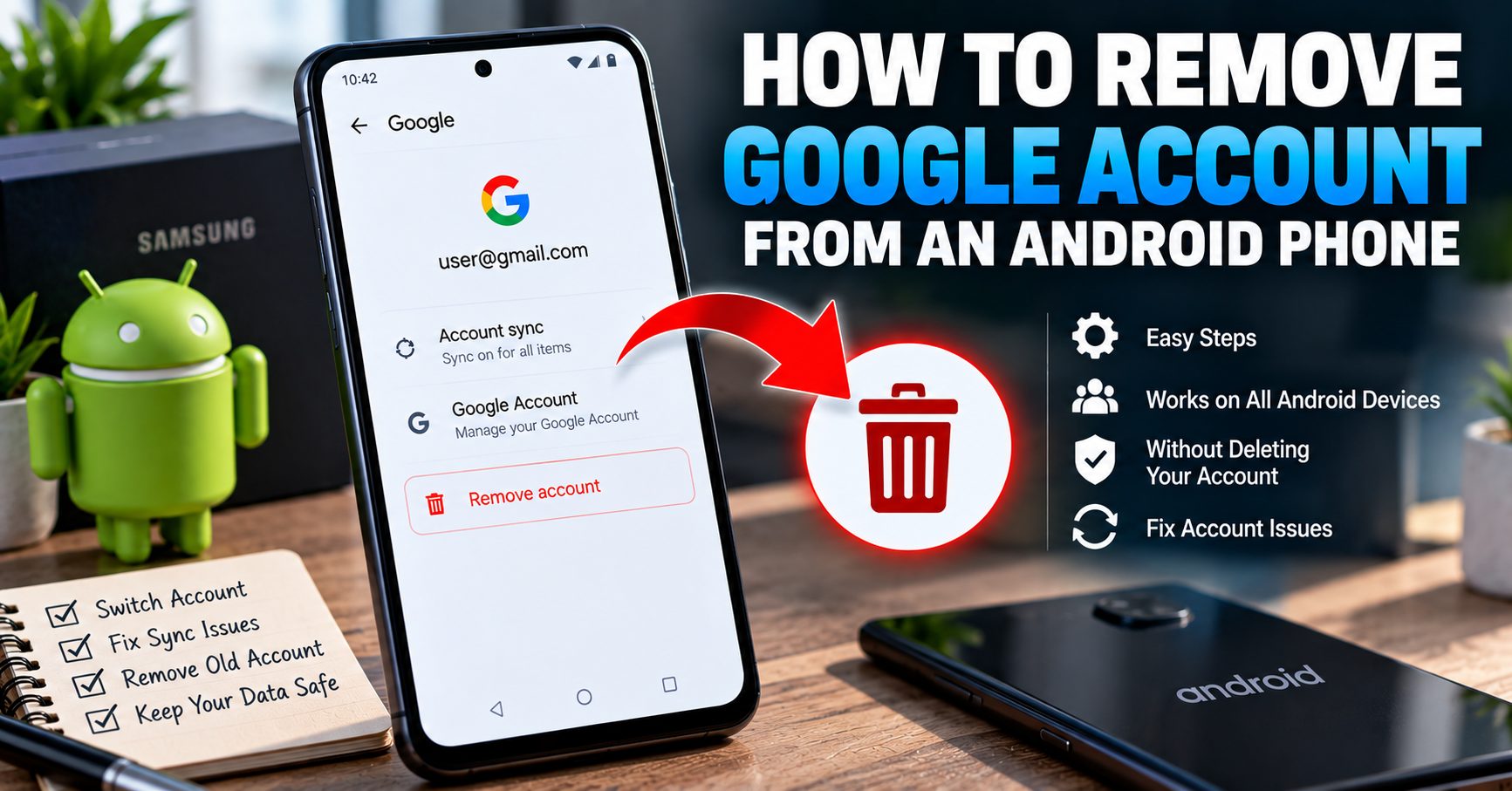
For the next step, you can learn how to remove a Google account from an Android phone or, if several accounts are present, follow our guide on how to remove multiple Google accounts from Android.