How to Factory Reset Android Without Triggering FRP Problems
A factory reset is supposed to give an Android phone a clean start, but resetting the device without preparing its accounts first can create an unexpected problem: the next setup may ask for a Google account that was previously used on the phone.
This is related to Factory Reset Protection (FRP), Google’s device-protection system designed to make it harder for someone to use a phone after an unauthorized reset.
If you are resetting your own Android phone and plan to keep using it, knowing the correct Google account and screen-lock credentials is usually the key to completing setup. If you are selling, trading in, returning, or giving the phone to someone else, the better approach is to remove your Google accounts before performing the reset.
This guide explains how to factory reset an Android phone while minimizing FRP-related problems, what to check before wiping the device, and what to do differently depending on whether you are keeping the phone or transferring it to another person.
What Causes FRP Problems After an Android Factory Reset?
Android’s device protection is designed to help prevent unauthorized use of a phone that has been reset without the owner’s permission.
When a protected device is reset, Android may require security information during the setup process. Depending on the device and reset situation, this can include the previous screen lock or a Google account that was previously added and synced to the phone.
That means a factory reset does not always mean:
Reset → New owner → No previous account verification
If the device is still protected, the setup process can include an ownership check.
For a deeper explanation of the technology, see our complete guide to FRP Lock and Factory Reset Protection on Android.
The Most Important Rule Before You Reset
Before choosing the reset option, decide what you are going to do with the phone afterward.
| Your Situation | What You Should Do |
|---|---|
| Keeping the phone | Make sure you know the Google account and password currently associated with the device. |
| Selling the phone | Remove your Google accounts and other personal accounts before the reset. |
| Trading in the phone | Remove your accounts and personal information before handing the device over. |
| Giving the phone away | Remove your Google accounts and perform a clean factory reset. |
| Returning the phone | Follow the seller or carrier’s instructions and remove your personal accounts first when appropriate. |
| Resetting to troubleshoot | Back up your information and make sure you can sign back into the Google account after the reset. |
This distinction is important because avoiding an FRP problem does not always mean removing your Google account. If you are keeping the phone and know the correct credentials, you may simply need to complete the ownership verification after the reset.
If another person will receive the phone, however, leaving your Google account attached is exactly what you want to avoid.
Step 1: Back Up Your Android Phone Before Resetting
A factory reset permanently removes data stored on the phone.
Before you reset anything, check that the information you need has been backed up or transferred somewhere safe.
- Photos and videos
- Contacts
- Messages
- Documents
- Downloads
- Application data
- WhatsApp or other messaging backups
- Authenticator and security information
- Notes and locally stored files
- Files stored on the phone rather than in cloud storage
Do not assume that every item on your phone is automatically backed up just because a Google account is connected.
Google’s current factory-reset guidance also notes that applications and their local data are removed during a factory reset, while data already stored in your Google Account can potentially be restored after signing in again.
Step 2: Check Which Google Accounts Are Connected
One of the easiest ways to create confusion after a reset is to forget which Google account was actually added to the phone.
Some Android phones contain multiple Google accounts. You might have your main Gmail account, an older personal account, a work account, or an account that was added temporarily.
Before resetting the phone, open Android’s account-management section and review the complete list.
Depending on the Android version and manufacturer, the menu may be called:
- Passwords & accounts
- Accounts
- Users & accounts
- Passwords, passkeys and accounts
- Manage accounts
The exact wording varies between Android versions and manufacturers.
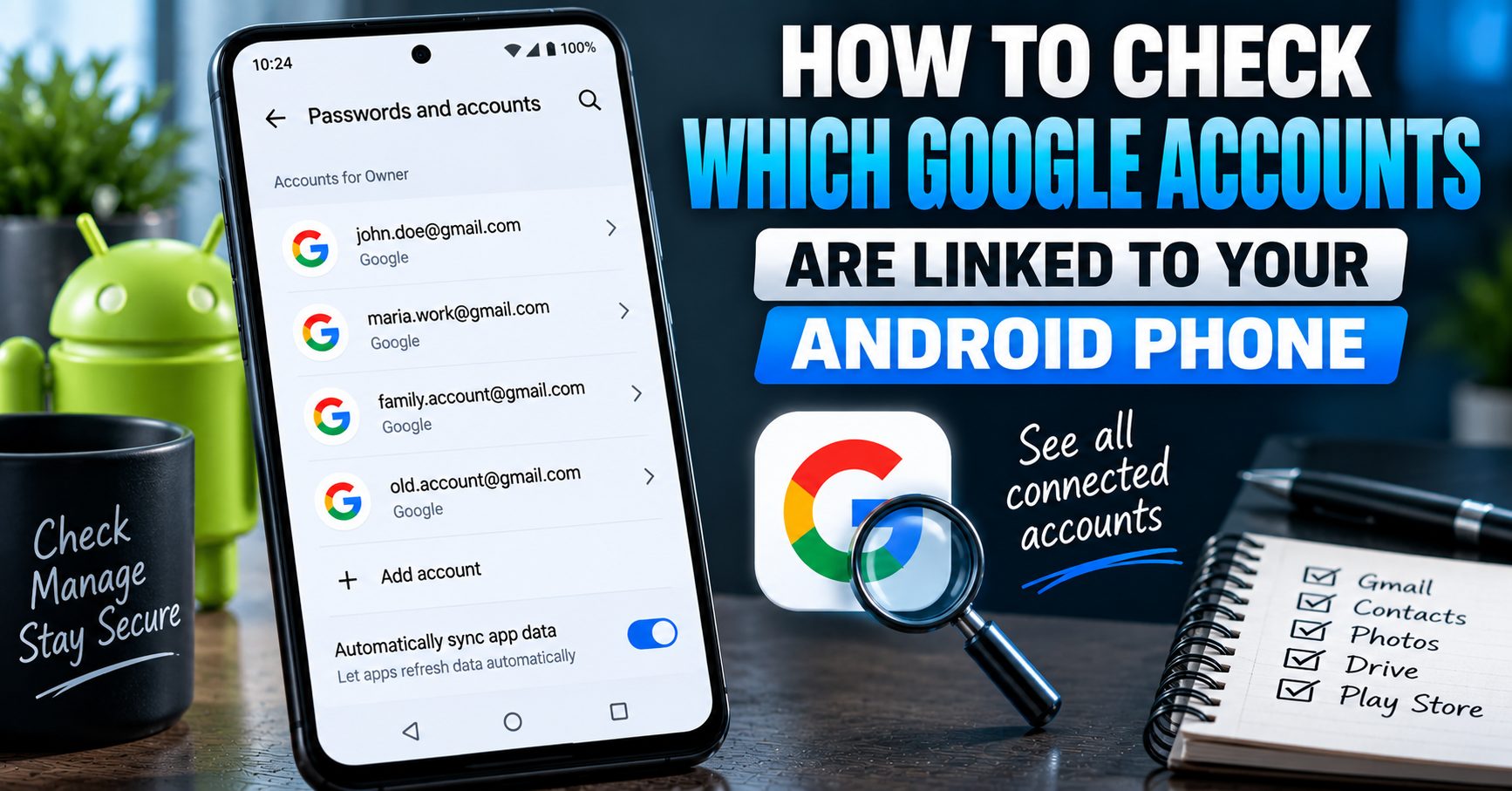
If you are not sure which accounts are currently connected, first read our guide on how to check which Google accounts are linked to your Android phone.
Step 3: If You Are Selling the Phone, Remove the Google Account First
If the phone is going to another person, do not simply perform a factory reset while your Google account remains connected and assume the reset will automatically prepare the device for its new owner.
Instead, remove the Google account from the phone before starting the reset.
On many current Android devices, the process is similar to:
- Open Settings.
- Open Passwords & accounts or the equivalent account-management section.
- Select the Google account.
- Choose Remove account.
- Confirm the removal.
If your phone uses different menu names, search within Settings for Accounts or Google.
Google’s current Android instructions confirm that removing an account from the device disconnects that account from the phone. If it is the only Google account on the device, Android may ask for the device PIN, pattern, or password before allowing the removal.
For a more detailed walkthrough, see how to remove a Google account from an Android phone.
What If the Phone Has Multiple Google Accounts?
Do not stop after removing the first account you see.
Open the account list again and check whether another Google account remains on the device.
This matters particularly on phones that have been used by more than one person or where several Gmail accounts have been added over time.
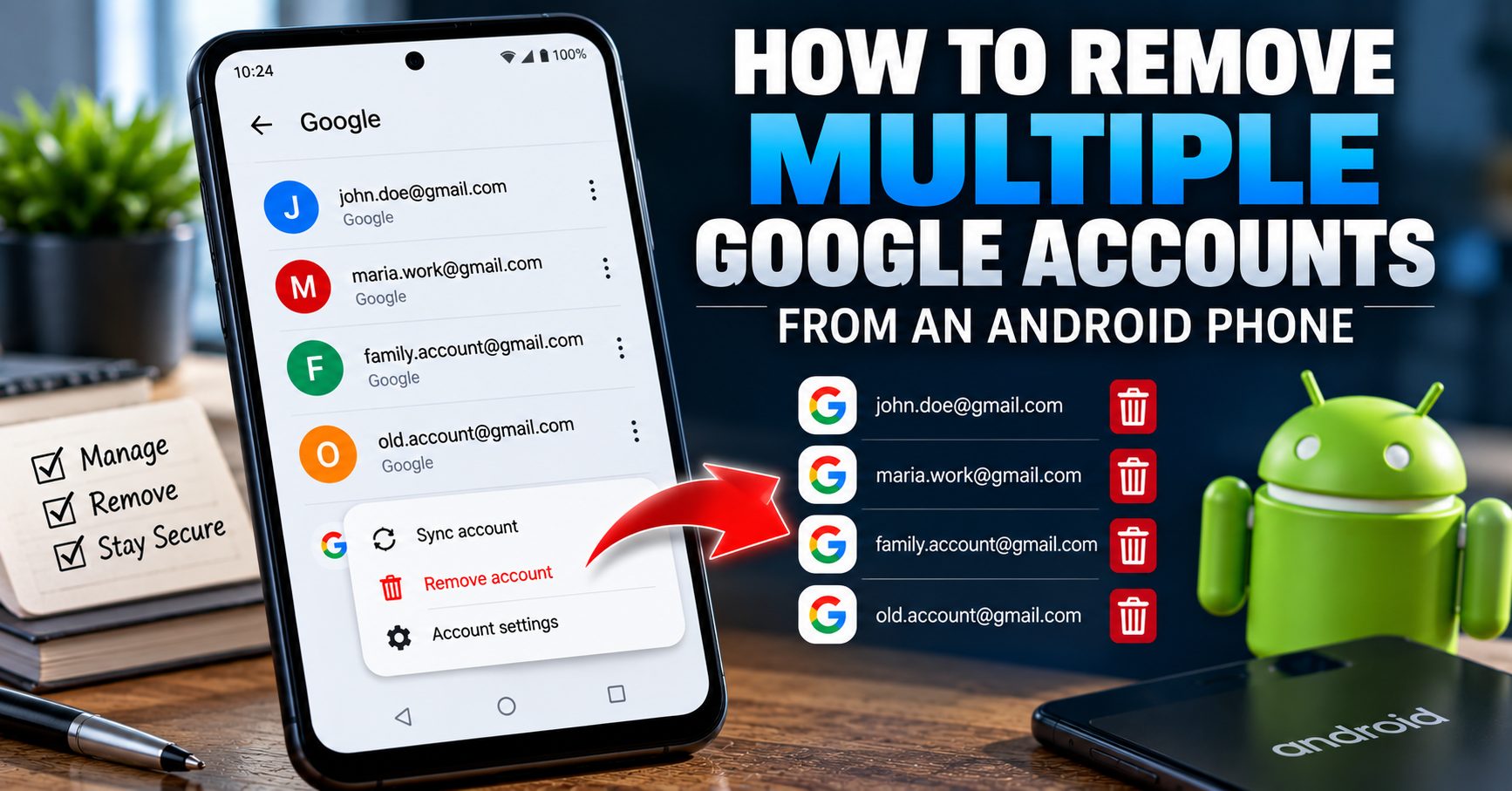
If you need to remove several accounts, follow our dedicated guide on how to remove multiple Google accounts from an Android phone.
The goal is not to delete those Google accounts permanently. The goal is to remove their connection to the phone before the device is wiped.
Removing a Google Account Does Not Delete the Google Account
This distinction is worth emphasizing because it causes unnecessary confusion.
Remove account from phone and delete Google account permanently are completely different actions.
Removing a Google account from Android disconnects it from that particular device. Your Gmail, Google Photos, Drive, Contacts, and other Google services associated with the account can continue to exist and can be accessed from other devices.
You should not permanently delete your Google account simply because you are selling your Android phone.
Step 4: Check for Other Accounts Before the Reset
Google is not necessarily the only account connected to an Android phone.
Depending on the manufacturer and how you used the device, check for additional accounts such as:
- Samsung account
- Xiaomi account
- Huawei account
- Microsoft account
- Outlook account
- Work or school account
- Other email accounts
- Payment applications
- Password managers
- Social media applications
Removing a Google account does not automatically remove every other account from the phone.
If the phone is being transferred to another person, account removal should be treated as a complete device-preparation process rather than a single Google setting.
Step 5: Check Your Google Password Before Resetting
If you are keeping the phone after the factory reset, make sure you know the password for a Google account currently associated with the device.
Google recommends confirming that you know the username and password before performing a factory reset because security information may be required during the setup process afterward.
A simple way to check is to sign in to the same Google account from another trusted device or computer.
This is especially important if you have several Gmail addresses and are not sure which one is currently used on the Android phone.
Step 6: Be Careful If You Recently Changed Your Google Password
Changing your Google password immediately before a factory reset can create an unnecessary complication.
Google’s current Android factory-reset guidance recommends waiting 24 hours after a recent Google Account password change before performing a factory reset.
If you recently changed your password because you suspected someone had access to your account, do not immediately reset the phone unless you have considered this waiting period.
Give the account change time to take effect, then proceed with the reset.
Step 7: Use the Normal Android Reset Option When the Phone Works
If you can unlock the phone and open Settings normally, the simplest reset method is usually the factory-reset option inside Android’s Settings app.
The exact menu path depends on the manufacturer and Android version, but it commonly resembles:
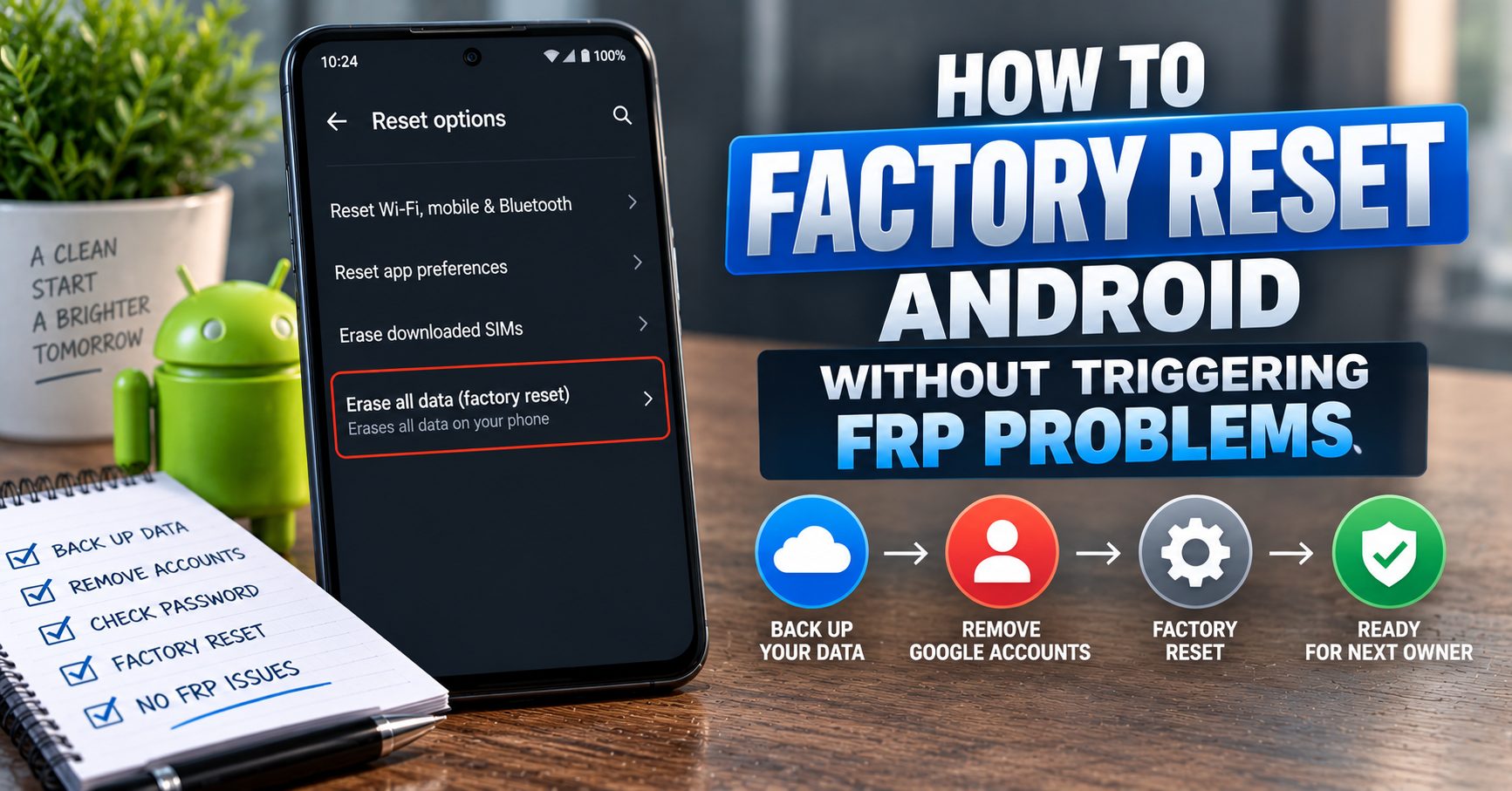
Settings → System → Reset options → Erase all data (factory reset)
Samsung, Xiaomi, Motorola, Google Pixel, OnePlus and other manufacturers can place the option in different locations.
Do not follow a recovery-mode tutorial intended for a different model simply because the buttons look similar. If Settings works normally, using the device’s built-in reset process gives you a clearer opportunity to review your accounts and confirm that you understand what will be erased.
Does Using Recovery Mode Automatically Cause FRP?
Not every recovery-mode reset should be described as automatically “causing FRP.” The important issue is whether the device remains protected and what security information Android requires during the subsequent setup.
A reset performed through hardware buttons or recovery can leave an owner facing account verification if the device protection relationship was still active.
That is why using recovery mode as a shortcut when you are preparing a phone for sale is generally unnecessary when you can still access Android normally.
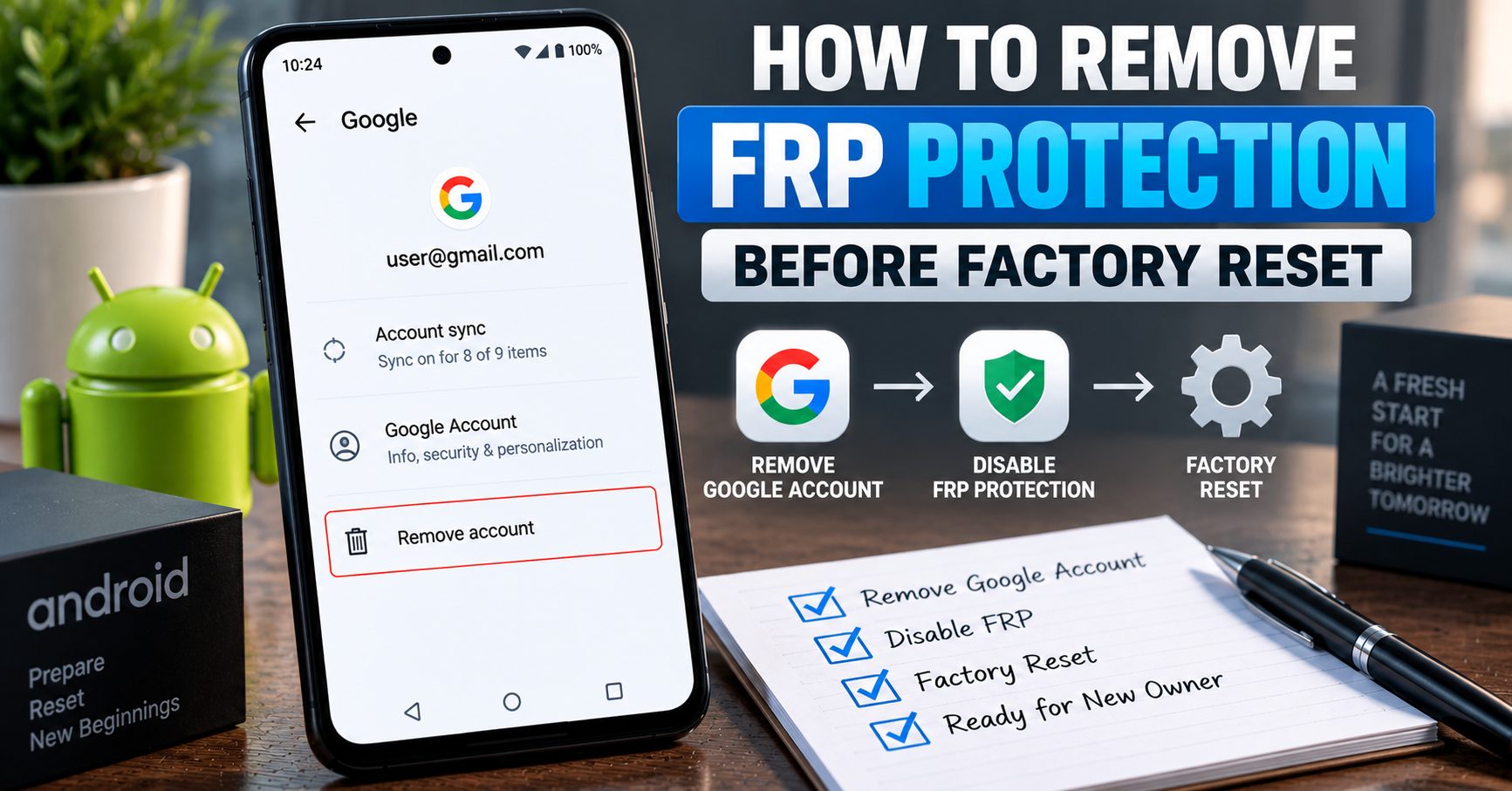
If you are specifically trying to prepare a device for another owner, see our guide on how to remove FRP protection before a factory reset.
Step 8: Charge the Phone and Keep It Connected
Google’s current factory-reset instructions recommend charging the phone to at least 70% and connecting it to Wi-Fi or a mobile network.
A reset can take some time, and the phone may need network access during the setup process afterward.
For a device you are preparing for someone else, there is no advantage to starting the reset with a nearly empty battery.
Step 9: Start the Factory Reset
Once your data is backed up and you have completed the appropriate account checks, start the factory reset.
Before confirming, read the warning displayed on the screen carefully. Android should clearly indicate that the process will erase data from the device.
Depending on the manufacturer, you may be asked to enter your screen PIN, pattern, password, or other security information before the reset can begin.
Allow the phone to complete the entire process without interrupting it.
What Happens After the Factory Reset?
After the reset, Android starts the initial setup process again.
If you are keeping the phone and the device requires ownership verification, use the appropriate Google account and security information associated with the device.
If you properly removed your Google account before resetting a phone that you are selling or giving away, the new owner should be able to proceed through setup without being asked to authenticate using your personal Google account.
The phone should ultimately reach the normal setup process where the new owner can add their own account.
What If Android Still Asks for the Previous Google Account?
If the phone is asking for a previously used Google account after the reset, stop and determine what happened rather than repeatedly entering random credentials.
First, consider whether the account was actually removed from the device before the reset.
If you were preparing the phone for sale, you may have removed one Google account while another remained connected.
If you are the owner and are keeping the phone, make sure you are using the Google account that Android is requesting rather than creating a new account and expecting it to replace the previous one.
If you cannot remember the credentials, use Google’s legitimate account-recovery process. Do not treat an FRP verification screen as something that should be defeated with an unofficial bypass application.
Can a New Google Account Replace the Previous Account During FRP Verification?
Not when Android is asking you to verify ownership of a protected device.
The purpose of the verification step is to establish that the person setting up the reset device has legitimate access to the account or security credentials associated with the device.
Creating a completely new Google account does not prove ownership of the previously protected account relationship.
If the phone belongs to you, recover the correct account. If you purchased the phone used and it is asking for the previous owner’s account, contact the seller and have the device properly prepared before trying to use it.
Factory Reset vs Removing Accounts: Which Comes First?
If you are selling, trading in, or giving away an Android phone, the order matters.
The safer sequence is:
- Back up your data.
- Check which Google accounts are on the phone.
- Remove the Google accounts.
- Check manufacturer and other personal accounts.
- Review your important applications and data.
- Perform the factory reset.
- Confirm that the phone reaches the initial setup screen.
This separates two different jobs:
Account removal protects your personal information and prepares the device for transfer.
The factory reset removes the remaining local data and returns Android to its setup state.
What If You Are Resetting the Phone Only to Fix a Problem?
The situation is slightly different if you are keeping the phone and performing the reset because Android is malfunctioning.
You may not need to remove your Google account first. Instead, your priority should be making sure your important information is backed up and that you know the account credentials required to set the phone up again.
In that situation, FRP is not necessarily a problem. It is simply a security mechanism that may require you to verify ownership after the reset.
The biggest mistake would be resetting the phone while also being unable to remember the Google account or password needed afterward.
Why Removing the Google Account Is Different From Signing Out of Gmail
Opening Gmail and signing out of the application is not the same as removing a Google account from Android’s system account settings.
The account-management section controls the Google account relationship with the Android device and its synchronized services.
If your goal is to prepare the entire phone for another owner, do not rely only on signing out of individual applications.
Use Android’s account settings to remove the Google account itself.
For the complete account-removal process, see How to Remove a Google Account From an Android Phone.
How to Avoid FRP Problems When Selling a Used Android Phone
If you are selling a phone, think of the reset as the last step of the preparation process rather than the first.
A good handover process looks like this:
- Transfer your photos and files.
- Back up important application data.
- Check all Google accounts.
- Remove Google accounts.
- Remove manufacturer accounts.
- Remove work or school accounts where appropriate.
- Review payment and authentication applications.
- Remove the SIM card.
- Check whether an eSIM needs to be transferred or removed.
- Perform the factory reset.
- Wait for the device to reach the initial setup screen.
- Do not sign back into your personal accounts afterward.
If you want a broader pre-sale checklist, read how to remove a Google account before selling an Android phone.
Common Mistakes That Lead to FRP Problems
Resetting Before Checking the Account List
You may remember one Gmail address but forget that another Google account is still connected to the phone.
Using a New Google Account Instead of the Existing One
A new account does not replace the credentials required by a protected-device verification process.
Changing the Password Immediately Before Resetting
Google recommends waiting 24 hours after a recent password change before performing a factory reset.
Assuming Factory Reset Deletes Every Account Relationship
A reset erases the phone’s local data, but device protection is specifically designed to prevent unauthorized use after certain resets.
Removing Gmail but Not the Android Account
Signing out of an individual application is not the same as removing the Google account from Android’s account settings.
Forgetting Manufacturer Accounts
Samsung, Xiaomi, Huawei and other manufacturers may have their own accounts and device-management systems. Google account removal is only one part of preparing a phone for another owner.
Using an Unofficial FRP Tool
If you own the phone, there is normally no reason to search for an FRP bypass tool simply because you reset it. Use the correct Google account or properly remove your account before transferring the device.
Android Factory Reset Checklist
Use this checklist before pressing the final reset button:
- ☐ Important photos and videos are backed up.
- ☐ Contacts are backed up or synchronized.
- ☐ Important files have been transferred.
- ☐ You know which Google accounts are on the phone.
- ☐ You know the Google password if you are keeping the phone.
- ☐ You have checked for multiple Google accounts.
- ☐ You have removed Google accounts if the phone is being transferred.
- ☐ Manufacturer accounts have been reviewed.
- ☐ Work or school accounts have been reviewed.
- ☐ Important authentication and payment information has been handled.
- ☐ The phone has sufficient battery.
- ☐ The phone is connected to Wi-Fi or mobile data.
- ☐ You understand that the reset will erase local data.
- ☐ You are ready to complete Google verification if you are keeping the device.
Frequently Asked Questions
Can I factory reset Android without triggering FRP?
If you are transferring the phone to another person, the best way to avoid an FRP-related ownership prompt is to remove your Google account from the device before the factory reset. If you are keeping the phone, you may still encounter a verification step, but knowing the correct Google account and security credentials allows you to complete the setup legitimately.
Should I remove my Google account before a factory reset?
Yes if you are selling, trading in, returning, or giving the phone to someone else. If you are simply resetting your own phone to troubleshoot a problem, you can keep the account on the device as long as you know the credentials required after the reset.
Does a factory reset automatically remove FRP?
A factory reset should not be treated as a way to disable device protection. If the phone is protected when it is reset, Android can require ownership verification during setup. Remove your Google account first when preparing the phone for a new owner.
What happens if I reset my phone without removing my Google account?
The phone may ask for the Google account or security information associated with the device during setup. This is an intentional part of Android’s device-protection system.
What if I have forgotten my Google password?
If you are keeping the phone, recover the Google account before resetting it. If you recently changed the password, Google recommends waiting 24 hours before performing the factory reset.
Will removing my Google account delete Gmail?
No. Removing a Google account from the phone is not the same as permanently deleting the Google account. The account can remain active and can be used on another device.
Should I use recovery mode to factory reset Android?
If you can access Settings normally, there is usually no reason to use recovery mode simply to reset the phone. Hardware or recovery-based resets can lead to ownership verification when device protection remains active, so account preparation should come first when transferring the device.
Can I bypass FRP if I forgot the previous Google account?
If the phone is legitimately yours, use Google’s account-recovery options to regain access to the account. If the phone belongs to someone else, the appropriate solution is for the previous owner or seller to properly remove their account and prepare the device for transfer.
Final Thoughts
Factory resetting an Android phone does not have to become an FRP problem. The important thing is to understand that factory resetting the device and removing the Google account are two different steps.
If you are keeping the phone, make sure you know the Google account and security credentials that may be required after the reset. If you are giving the phone to someone else, remove your Google accounts and review the other accounts on the device before performing the factory reset.
The safest sequence is simple: back up your data, identify your accounts, remove the accounts when transferring the device, and then factory reset Android.
For the next step, see our detailed guide on how to remove FRP protection before a factory reset, or use our guide on checking which Google accounts are linked to your Android phone before you begin.