How to Remove FRP Protection Before Factory Reset
If you are planning to factory reset an Android phone before selling, trading in, or giving it to someone else, removing the Google account first is one of the most important steps you can take.
Android’s Factory Reset Protection (FRP), also referred to by Google as device protection, is designed to prevent an unauthorized person from setting up a protected phone after it has been reset. If the Google account remains associated with the device when it is reset, the next setup may require account information that was previously used on the phone.
The good news is that if you still have access to the phone and the Google account, you can normally prepare the device correctly before resetting it. The key is to remove the Google account from the phone before performing the factory reset.
In this guide, you’ll learn exactly what to do before the reset, how to check for additional Google accounts, what happens to FRP after account removal, and what mistakes can leave a phone asking for previous account information.
What Does It Mean to Remove FRP Before a Factory Reset?
Removing FRP before a factory reset does not mean bypassing Android’s security system. It means properly removing the Google account associated with the device while you still have legitimate access to the phone.
Google explains that device protection can prevent someone from using a phone after an unauthorized factory reset. To turn off device protection, Google instructs users to remove their Google account from the device.
This distinction is important:
- Removing the Google account: disconnects the account from the Android device.
- Factory resetting the phone: erases the phone’s local data and returns it to its initial setup state.
- FRP/device protection: helps prevent unauthorized use after certain types of resets.
- FRP bypass: attempting to circumvent the ownership verification mechanism rather than properly removing the account.
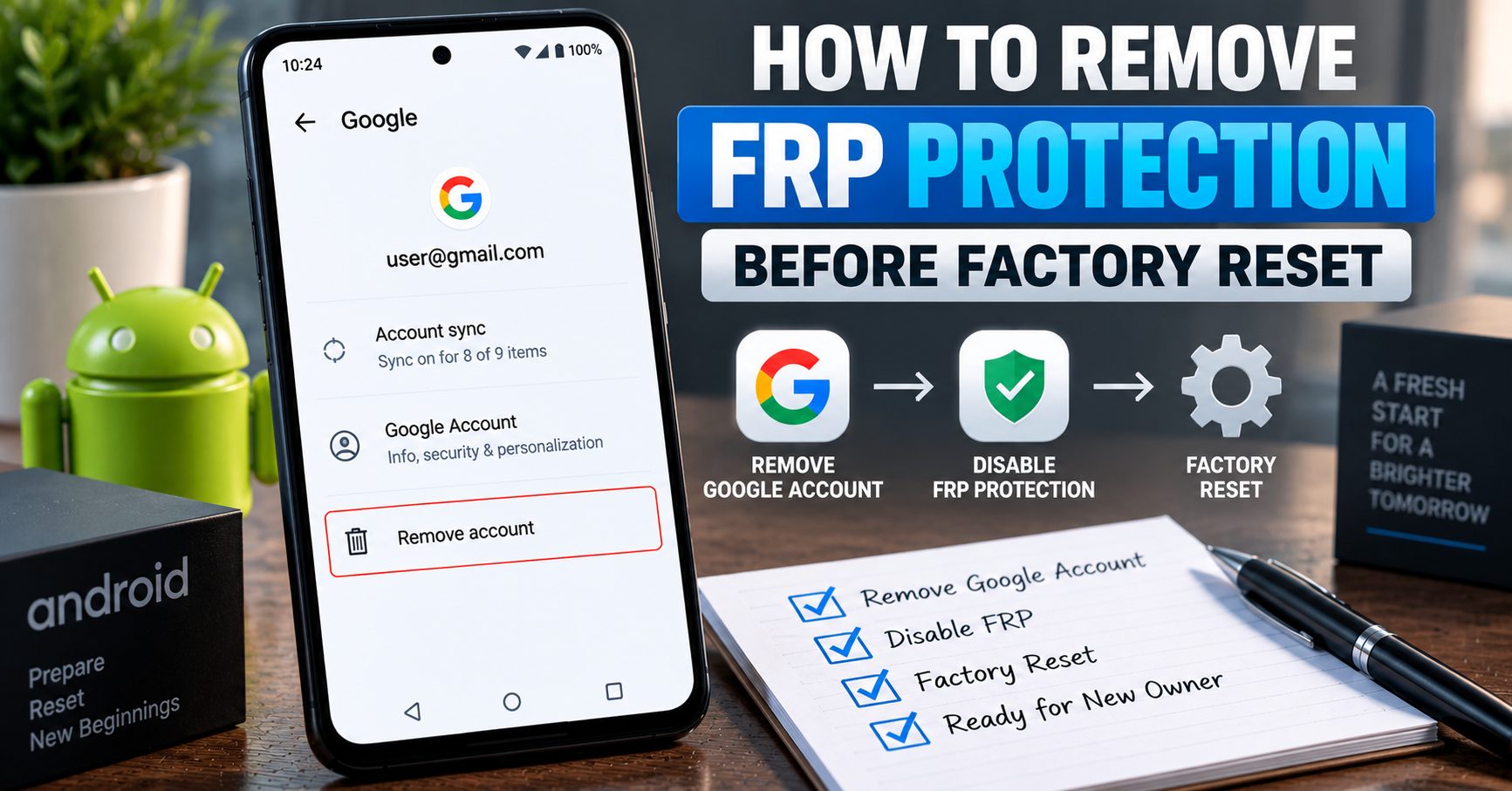
For a phone you own and are preparing for a new owner, the correct approach is to remove your accounts before resetting the device.
If you want to understand the technology behind FRP first, see our complete guide to FRP Lock and Factory Reset Protection on Android.
Why Should You Remove the Google Account Before Resetting?
A factory reset deletes the information stored on the phone, but it does not automatically mean that every security relationship between the device and your Google account has been removed beforehand.
Google’s current Android documentation specifically recommends knowing the Google account credentials and screen-lock information before performing a factory reset. When device protection is active, Android can require ownership verification during the setup process after the reset.
Removing the Google account first is particularly important if you are:
- Selling your Android phone
- Trading the phone in
- Giving the phone to a family member or friend
- Returning a device to a retailer or carrier
- Sending the phone to another person
- Preparing an old Android phone for a new owner
If you’re preparing a phone specifically for sale, our guide on how to remove a Google account before selling an Android phone covers the broader privacy and handover process.
How to Remove FRP Protection Before Factory Reset
The safest method is to remove every Google account from the phone before starting the factory reset.
Step 1: Back Up Important Data
Before removing accounts or resetting the phone, make sure anything you want to keep has been backed up.
A factory reset erases locally stored information, so check important items such as:
- Photos and videos
- Contacts
- Messages
- Documents
- Downloads
- Application data
- Authenticator or security information
- WhatsApp or other messaging backups
- Files stored outside cloud services
Do not assume that every file on the phone is automatically backed up simply because a Google account is present.
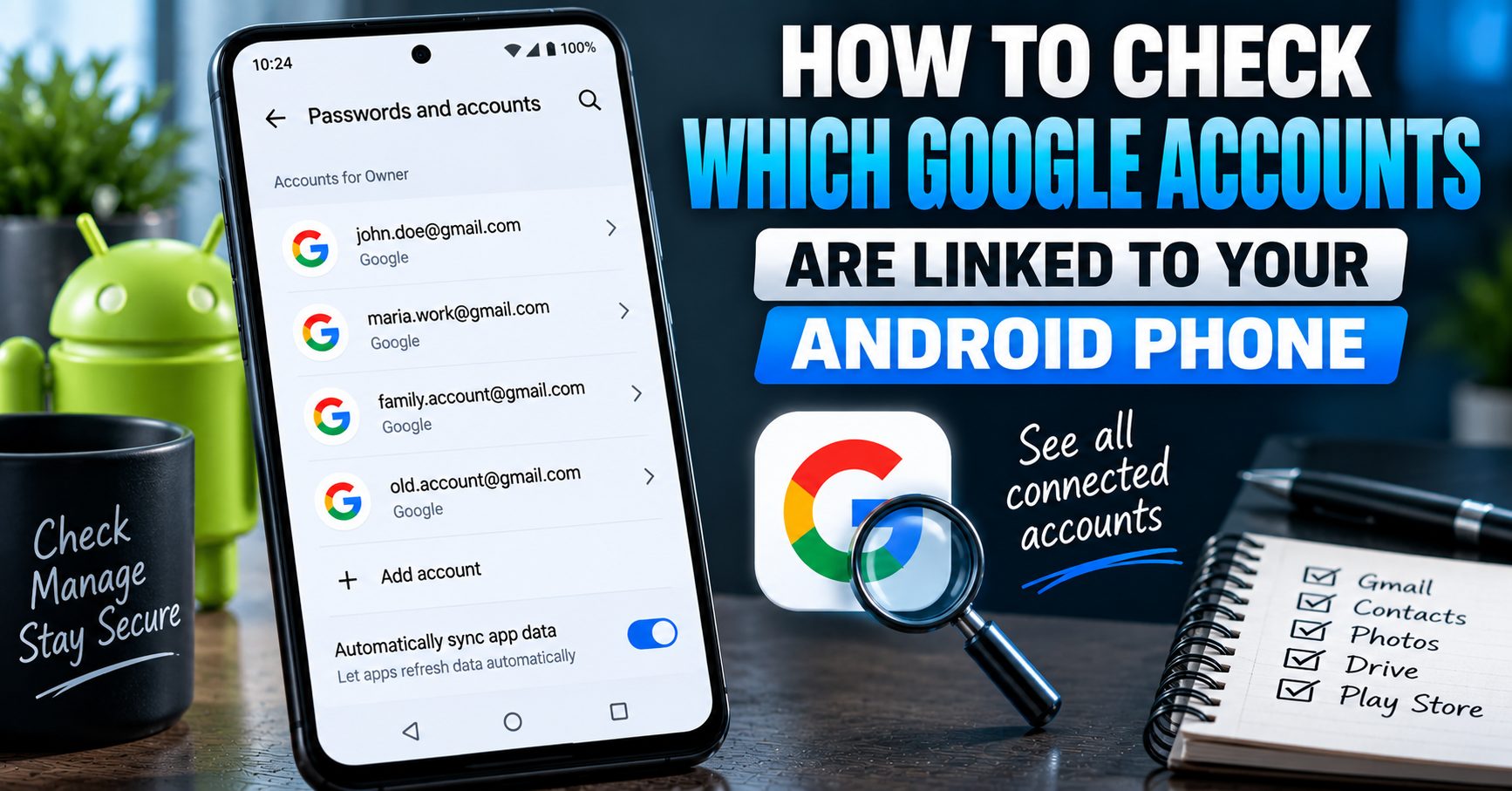
Step 2: Check Which Google Accounts Are on the Phone
Many Android phones contain more than one Google account. Removing only the account you remember using most often may not be enough to properly prepare the device.
Open your phone’s account settings and review the complete list of Google accounts currently added to the device.
Depending on the Android version and manufacturer, the menu may appear under names such as:
- Passwords & accounts
- Accounts
- Users & accounts
- Manage accounts
- Passwords, passkeys and accounts
Android manufacturers can change the exact menu names, so the wording on your phone may be different.
For a detailed walkthrough of this step, see how to check which Google accounts are linked to your Android phone.
Step 3: Remove Each Google Account From the Phone
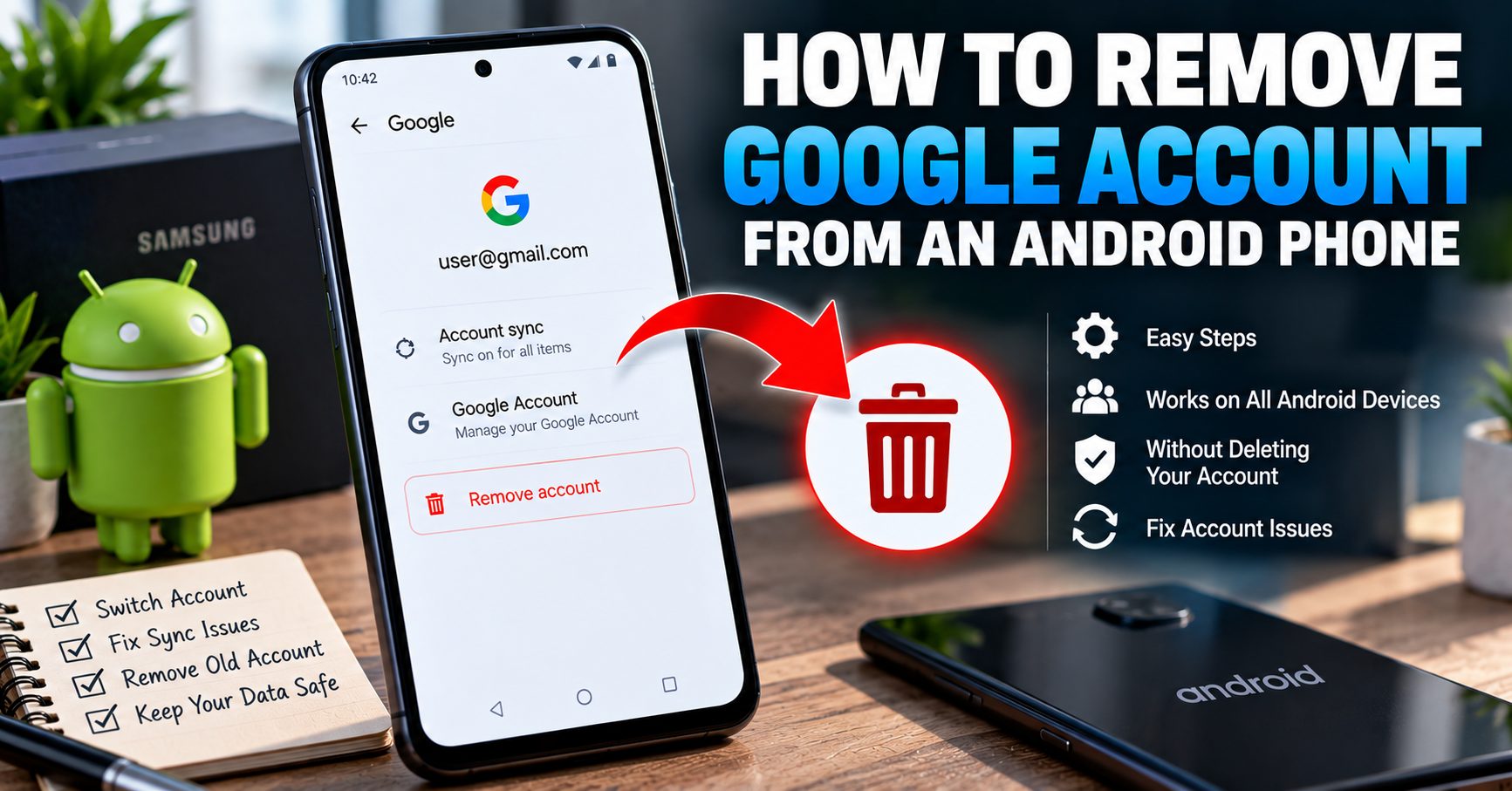
Once you have identified the accounts, open the account-management section and select the Google account you want to remove.
Look for an option such as Remove account. Confirm the removal when Android asks you to do so.
Repeat the process for every Google account that you no longer want associated with the device.
Removing an account from the phone is not the same thing as permanently deleting the Google account. The Google account itself can continue to exist and can still be used on another device.
If you only have one Google account on the phone, Android may require your screen PIN, pattern, or password before allowing you to remove it.
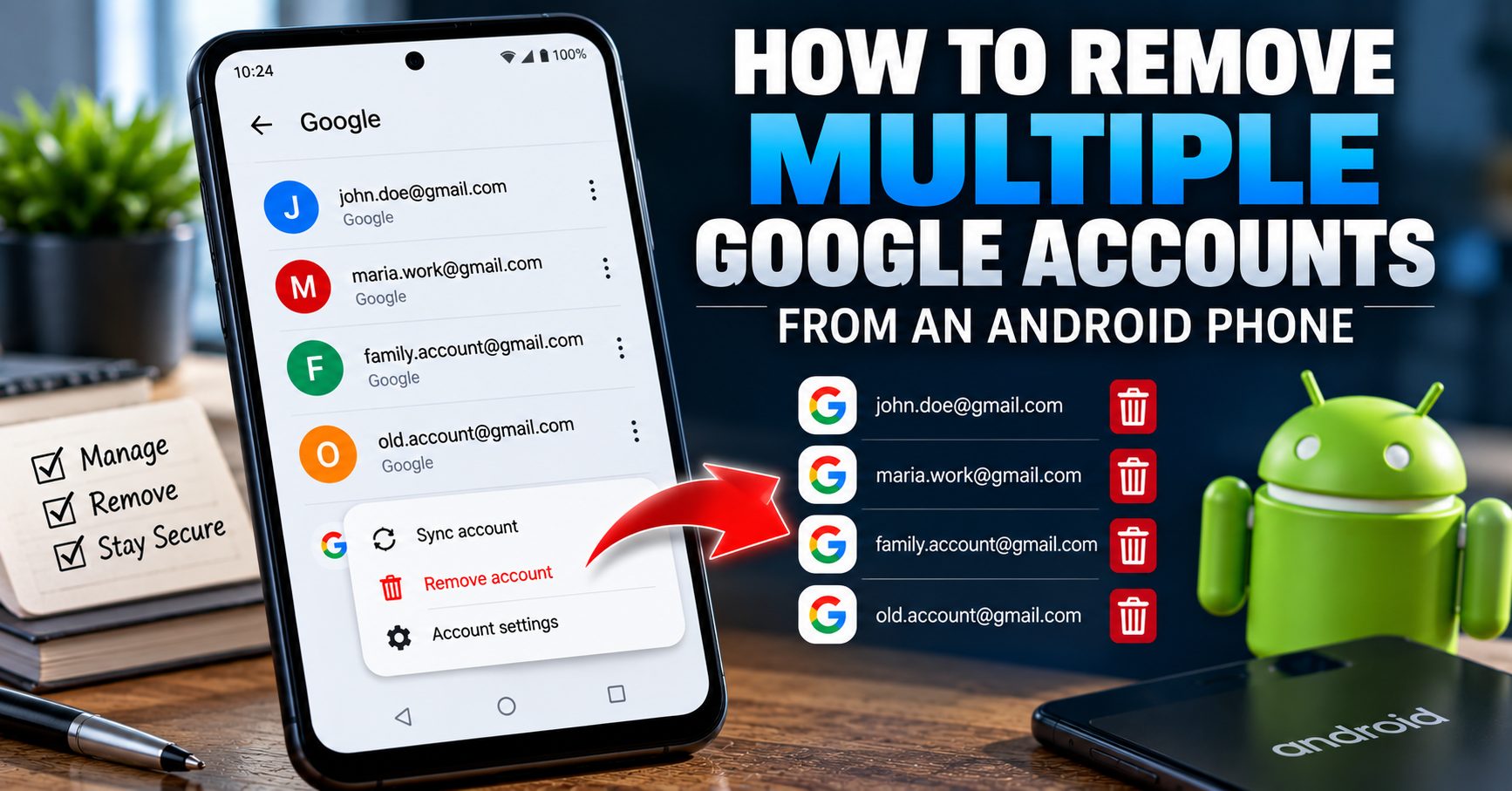
What If You Have Multiple Google Accounts?
This is one of the most common areas where people make mistakes before a factory reset.
A phone might contain a personal Gmail account, an old Gmail account, a work account, or another Google account that was added temporarily.
Before resetting the phone, check the entire account list rather than removing only the account you normally use.
If the phone contains several Google accounts, our dedicated guide explains how to remove multiple Google accounts from an Android phone safely.
Pay particular attention to old accounts that you may have forgotten about. An account that is rarely used can still be present on the device.
Does Removing a Google Account Actually Turn Off FRP?
According to Google’s Android documentation, removing the Google account from the device turns off device protection.
That is why account removal should happen before you perform the factory reset when the phone is being transferred to another person.
However, removing the account and performing the factory reset are still two separate actions:
| Action | What It Does |
|---|---|
| Remove Google account | Disconnects the Google account from the Android device and turns off device protection. |
| Factory reset | Erases the phone’s local data and returns it to the initial setup process. |
| Delete Google account | Permanently deletes the Google account itself when performed through Google’s account-management process. |
You normally do not need to delete your Google account just because you are removing it from an Android phone.
Step 4: Check for Other Accounts Before the Reset
FRP is only one part of preparing a phone for another owner.
Before resetting the device, review other accounts and services that may contain your personal information.
- Samsung account
- Xiaomi account
- Huawei account
- Microsoft account
- Outlook
- Work or school accounts
- Email accounts
- Social media applications
- Payment applications
- Password managers
Some manufacturers have their own account systems and device-protection features. Removing a Google account does not automatically remove every other manufacturer’s account from the phone.
Step 5: Remove Your Screen Lock When Appropriate
If you are permanently handing the phone to another person, review the screen lock before the reset.
Depending on the device and reset method, Android may require the existing PIN, password, or pattern as part of the reset and ownership-verification process.
Do not confuse the screen lock with FRP. They are different security mechanisms.
A screen lock controls access to the device while it is in use. FRP/device protection helps protect the device after a factory reset by requiring ownership verification when applicable.
Step 6: Perform the Factory Reset From Settings
Once your data is backed up and the accounts have been removed, you can perform the factory reset.
On many Android phones, the option can be found under a path similar to:
Settings → System → Reset options → Erase all data (factory reset)
The exact location varies by manufacturer and Android version. Samsung Galaxy, Xiaomi, Motorola, Google Pixel, OnePlus and other devices may use different menu names.
Follow the instructions displayed on your specific phone and confirm that you understand that the reset will erase the device.
Google states that a factory reset erases the data stored on the phone. Data already backed up to your Google account may be available for restoration later, but applications and their local data are removed during the reset.
Why Using Settings Is Preferable When You Can Access the Phone
If the phone is working normally and you can access Settings, there is usually no reason to immediately reach for recovery-mode button combinations simply to perform a normal factory reset.
A Settings-based reset allows you to prepare the device first by:
- Backing up your information.
- Checking the Google accounts on the phone.
- Removing the Google accounts.
- Removing other personal accounts.
- Reviewing your screen-lock settings.
- Starting the factory reset from the operating system.
This creates a much cleaner handover process than wiping the phone first and discovering afterward that the setup process is asking for previous account information.
What Happens If You Factory Reset Before Removing the Google Account?
If you reset a protected Android device while the relevant account relationship remains in place, the setup process can require ownership verification.
Google explains that after certain factory-reset methods, you may be asked to enter the screen lock or a Google account that was previously added and synced to the device.
This is an intentional security feature, not an indication that the factory reset failed.
The purpose is to prevent someone who has obtained a device without authorization from simply wiping it and setting it up as their own.
If you have already reset your own phone and are now seeing a Google verification screen, do not assume that creating a new Google account will solve the problem. The device may be asking for an account that was previously associated with it.
For the broader explanation of why this happens, read FRP Lock Explained: How Factory Reset Protection Works on Android.
What If You Forgot Which Google Account Was on the Phone?
If you can still access the phone before the reset, this is exactly why you should check the account list first.
Open the account-management section and identify every Google account currently added to the device.
If you have already removed an account and are unsure which account was previously connected, review your Google account information and devices from another device or computer.
Do not guess repeatedly during the Android setup process. If you are the legitimate owner and cannot remember your credentials, use Google’s official account-recovery process instead of trying to circumvent the verification system.
What If You Recently Changed Your Google Password?
This is another important detail before a factory reset.
Google’s current factory-reset guidance says that if you recently changed your Google Account password, you should wait 24 hours before performing a factory reset.
This is particularly important if you are preparing the phone for someone else and have just changed the password as part of securing your account.
Do not assume that changing the password immediately before the reset is the safest option. Give Google’s account-security changes time to take effect before proceeding with a reset.
Does Factory Resetting the Phone Delete the Google Account?
No.
A factory reset removes data from the phone. It does not permanently delete your Google account.
Your Google account can continue to exist after you remove it from the phone, and you can sign into that account on another Android device, computer, or Google service.
This is why Remove account and Delete account should never be treated as the same operation.
If you need to understand the difference in more detail, see our guide on how to remove a Google account from an Android phone.
FRP Protection vs Screen Lock vs SIM Lock
Several different types of phone security are often confused with one another.
| Security Type | What It Protects |
|---|---|
| FRP / Device Protection | Helps prevent unauthorized use after certain factory-reset situations. |
| Screen Lock | Protects access to the phone while it is being used. |
| SIM / Carrier Lock | Restricts which mobile networks can be used with the phone. |
| Google Account | Provides access to Google services and can be part of Android device protection. |
| IMEI | Identifies the mobile device on cellular networks. |
Removing a Google account does not automatically unlock a carrier-locked phone, change its IMEI, or remove a screen lock from another device.
If you are researching the difference between account-based security and network unlocking, our NCK and network unlock guide explains how SIM/network unlocking differs from Google account protection.
Do You Need to Remove the Google Account From Google’s Website Too?
Usually, the first priority before a factory reset is removing the account directly from the Android phone.
Google also provides account-management tools that allow you to review devices and sessions associated with your account. These are useful for checking whether an old phone is still associated with your Google account after you no longer have physical access to it.
However, the Google account’s device list should not be confused with the list of Google accounts currently added to the Android phone. They are different things.
If you still have the phone in your hands, check the phone’s account settings first.
What About Find Hub?
Google’s Find Hub service is another part of Android’s device-management ecosystem.
If you are preparing a phone for another owner, make sure your Google account has been properly removed from the device before handing it over.
Do not simply assume that removing the device from an online account-management page is identical to removing the Google account from the phone itself.
The safest approach when you have physical access is still to remove your account from Android’s account settings before performing the factory reset.
Common Mistakes That Can Cause FRP Problems
Resetting the Phone Before Removing the Google Account
This is the biggest mistake. If the device remains protected, the next setup can require previous account information.
Removing Only One Google Account
If several Google accounts are present, check the complete account list rather than assuming there is only one.
Changing the Password Immediately Before Resetting
Google recommends waiting 24 hours after a recent password change before performing a factory reset.
Deleting the Google Account Instead of Removing It
You generally do not need to permanently delete your Google account just to disconnect it from a phone.
Confusing FRP With Carrier Unlocking
FRP is an Android security mechanism. Carrier unlocking is related to cellular-network restrictions. Removing a Google account does not unlock a carrier-restricted device.
Ignoring Manufacturer Accounts
A Samsung, Xiaomi, Huawei, or other manufacturer’s account can have its own relationship with the device. Preparing a phone for another owner requires more than checking Google alone.
FRP Removal Before Factory Reset Checklist
Before you reset an Android phone that you plan to sell, trade in, or give away, use this checklist:
- Back up important photos and videos.
- Back up contacts and other important data.
- Check every Google account on the phone.
- Remove every Google account you no longer want connected.
- Check for manufacturer accounts such as Samsung or Xiaomi.
- Remove work or school accounts if appropriate.
- Review messaging and authentication applications.
- Check your Google account password if you are keeping the device.
- If you recently changed the Google password, wait 24 hours before resetting.
- Review the screen-lock settings.
- Perform the factory reset from Settings when the phone is accessible.
- Allow the phone to restart to the initial setup screen.
- Do not give the phone to its new owner until your personal accounts and data have been properly removed.
Can You Remove FRP Without the Google Account?
If you no longer have legitimate access to the Google account associated with a protected device, this is a different situation.
This article is specifically about preventing FRP problems before a factory reset when you still have access to the phone and account.
It is not a guide to bypassing Android’s ownership verification.
If you bought a used phone that is already asking for the previous owner’s Google account, the appropriate solution is to work with the previous owner or seller and have the device properly removed from the previous owner’s account before resetting it.
Do not rely on websites claiming that an IMEI number can universally generate a legitimate FRP unlock code. FRP is not the same thing as a carrier unlock code or an IMEI-based network unlock.
Frequently Asked Questions
Does removing a Google account disable FRP?
Google states that removing the Google account from the Android device turns off device protection. This is the proper preparation step when you intend to factory reset and transfer the phone to another person.
Should I remove my Google account before factory resetting my phone?
Yes, especially if you are selling, trading in, giving away, or returning the phone. Removing the Google account first helps prevent the next owner from encountering ownership verification after the reset.
Does a factory reset remove FRP?
A factory reset does not necessarily remove the protection relationship that exists before the reset. If the device is protected, Android can require ownership verification after the reset. Remove the Google account first when preparing the phone for another owner.
Do I need to delete my Gmail account?
No. Removing a Google account from the phone is different from permanently deleting the Google account. You can keep the account and use it on another device.
What happens if I forget to remove my Google account?
The phone may require a previously added and synced Google account during setup after the factory reset. This is part of Android’s device-protection system.
What if I have multiple Google accounts?
Check the complete account list and remove the accounts from the phone before resetting it. Our guide on removing multiple Google accounts from Android explains the process in more detail.
Can I remove FRP by changing my Google password?
No. Changing a Google password is not the same as removing the Google account from the phone. In fact, Google recommends waiting 24 hours after a recent password change before performing a factory reset.
Can I remove FRP after I already reset the phone?
If the phone is now asking for previous Google account information, the situation is different. You should use the previously associated account or Google’s legitimate account-recovery options. This article focuses on preventing that situation before the reset.
Final Thoughts
The safest way to remove FRP protection before a factory reset is not to look for a bypass tool or an unofficial unlock service. If you own the phone and can access it normally, prepare it correctly before wiping it.
Back up your data, check every Google account, remove the accounts from the device, review other manufacturer and personal accounts, and then perform the factory reset.
That process separates account removal from data erasure and greatly reduces the chance that the next owner will encounter a Google ownership-verification screen after the phone has been reset.
If you’re working through the complete process of preparing an Android phone for another owner, continue with our guides on removing a Google account before selling an Android phone and checking which Google accounts are linked to an Android phone.