Forgot Google Account After Factory Reset? Recovery Options Explained
Forgetting which Google Account was used on an Android phone becomes especially frustrating after a factory reset. The phone may start normally, reach the Google verification screen, and then ask for an account that you cannot immediately remember.
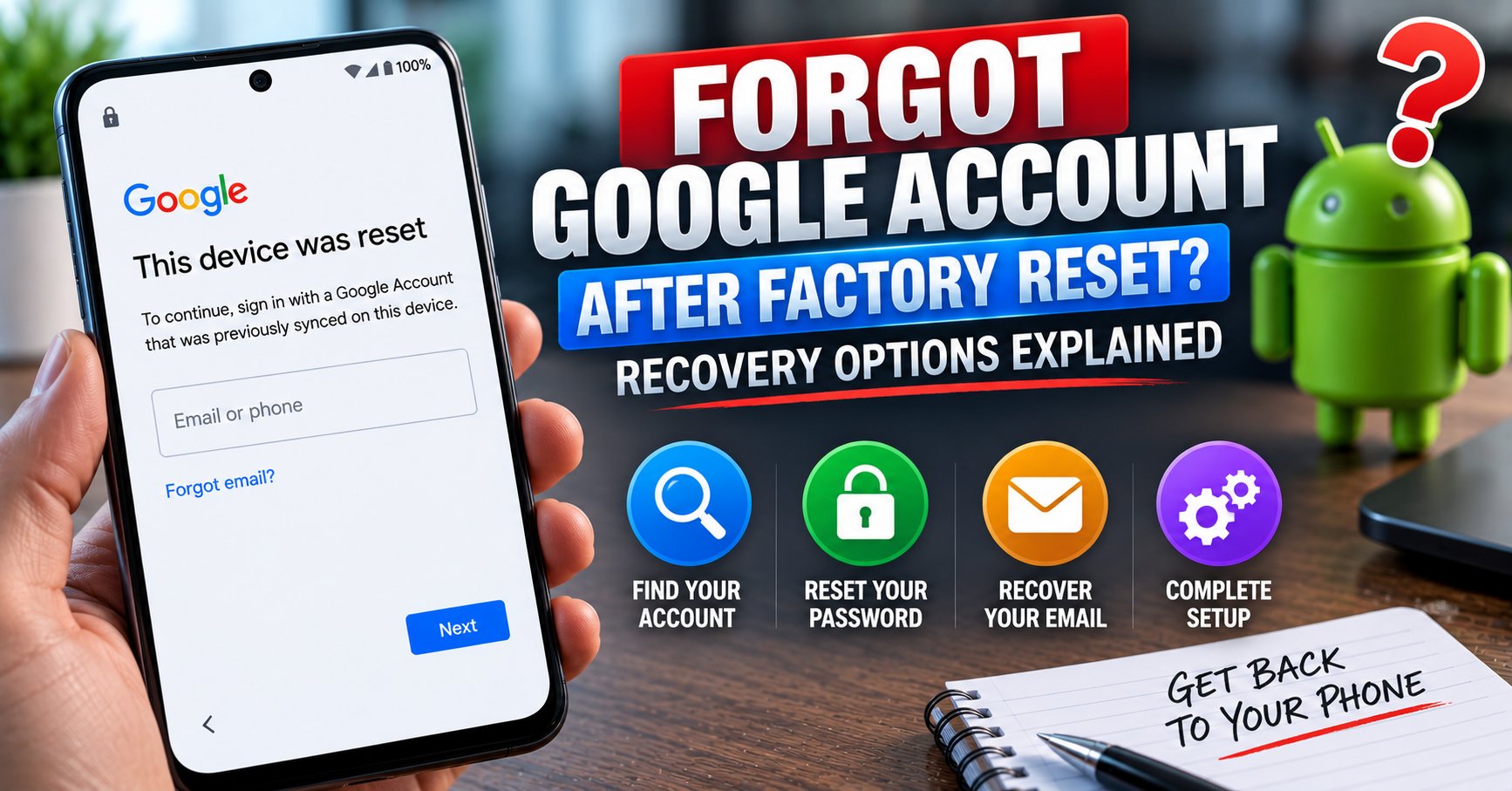
If you see a message such as “This device was reset” and Android asks you to sign in with a Google Account that was previously used on the device, the solution is not to create a random new Gmail address. You need to identify the correct Google Account and recover access to it if you have forgotten the password or username.
This guide explains what to do when you have forgotten the Google Account after a factory reset, how to identify the account, how Google’s recovery process works, what to do if you forgot the Gmail address itself, and what options are available when normal recovery does not immediately succeed.
Why Is Android Asking for a Google Account After the Reset?
A factory reset removes the data stored on the phone, but Android can still require ownership verification during the subsequent setup process.
This is part of Factory Reset Protection (FRP), also known as Android device protection. Its purpose is to make it more difficult for an unauthorized person to erase a protected phone and immediately set it up as their own.
When Android displays a message such as “This device was reset. To continue, sign in with a Google Account that was previously synced on this device,” the important part is the phrase previously synced.
The phone is not simply asking whether you have any Google Account. It is asking for an account that was previously associated with the device and can be used to verify ownership.
For a detailed explanation of why this happens, read our guide to FRP Lock and Factory Reset Protection on Android.
What Should You Do First?
Do not immediately start trying random Gmail addresses and passwords.
Instead, separate the problem into two questions:
- Which Google Account was previously on the phone?
- Can I still sign in to that Google Account?
If you can answer both questions, the Android setup process is usually much easier to complete.
If you remember the email address but forgot the password, you have an account-recovery problem. If you cannot even remember the email address, you first need to recover the Google Account username.
Step 1: Think About Every Google Account You Used on the Phone
Many people remember their main Gmail address but forget that Android may have contained several Google Accounts.
Before the factory reset, you may have used:
- Your primary personal Gmail account
- An older Gmail address
- A second personal Google Account
- A work or school Google Account
- A family member’s account
- An account used mainly for Google Play
- An account used for Google Photos or Drive
Do not assume that the account you use most often today was necessarily the account Android is asking for.
If you are unsure which accounts were previously connected to the phone, start with our guide on how to check which Google Accounts are linked to an Android phone.
Step 2: Check Another Device Where You May Still Be Signed In
If you own another Android phone, tablet, Chromebook, or computer where you regularly use Google services, check there before attempting recovery.
You may still be signed in to the Google Account you used on the reset phone.
Look for clues in services such as:
- Gmail
- Google Photos
- Google Drive
- Google Contacts
- Google Play
- YouTube
- Google Account settings
An active Google session on another trusted device can help you determine which email address belongs to the account you need.
If you find several Google Accounts, do not automatically assume that the first one you see is the correct one. Compare them with the accounts you remember using on the reset Android phone.
Step 3: If You Remember the Email but Forgot the Password
This is the simpler recovery situation.
If you know the Google Account email address but cannot remember the password, use Google’s official account-recovery process.
Google’s recovery process may ask questions or request information to help confirm that you are the account owner. Google recommends answering the questions as accurately as possible and using familiar information associated with the account.
Once you successfully recover the account and can sign in, return to the Android setup process and enter the recovered credentials.
Do not give your Google password or verification codes to a third-party “FRP unlock” service. Google specifically warns users against services that claim to provide account or password support and says not to share passwords or verification codes.
Step 4: If You Forgot the Google Account Email Address
Forgetting the email address is different from forgetting the password.
Google provides a username-recovery process that can help you find accounts associated with information you still remember.
Google’s current guidance says that you may need:
- A recovery phone number or recovery email address
- The full name associated with the account
- Enough information to confirm that the account belongs to you
If Google finds matching accounts, you can use the recovered username to continue with normal account recovery.
This is particularly useful if you have several Gmail addresses and cannot remember which one was used on the Android phone.
How to Find a Forgotten Gmail Address
If the phone is already stuck at the Google verification screen, use another trusted device or computer for this step.
- Think of the recovery phone numbers you have used with Google.
- Check recovery email addresses you may still access.
- Use the full name associated with your Google Account.
- Use Google’s username-recovery process.
- Review any matching Google Accounts that are returned.
- Try to identify which account was previously used on the reset phone.
Do not create a new Gmail address simply because you cannot immediately remember the old one. A new account does not replace the previously associated Google Account required by device protection.
What If You Have Multiple Google Accounts?
This is one of the most common reasons users become confused after an Android factory reset.
You may know several Google Account passwords but still not know which account Android wants.
For example, imagine that the phone contained:
- personal@gmail.com
- work@gmail.com
- oldaccount@gmail.com
All three may be valid Google Accounts, but that does not mean that all three are interchangeable during a protected-device verification process.
You need to determine which account was previously added and synchronized with the device.
If you are dealing with several accounts, our guide on how to remove multiple Google Accounts from an Android phone explains how multiple accounts can coexist on a single Android device.
Can You Use a Brand-New Google Account?
Not if Android is specifically requesting ownership verification for the previously protected device.
A new Google Account may be perfectly valid, but it does not automatically replace the Google Account relationship that existed before the factory reset.
This is why creating another Gmail address is usually not the answer to an FRP verification screen.
The correct sequence is:
- Identify the previously used Google Account.
- Recover the account if necessary.
- Confirm that you can sign in.
- Use the appropriate account during Android setup.
What If You Remember the Account but Google Rejects the Password?
First, verify that the password really works.
Use another trusted device or computer and attempt to sign in to the same Google Account.
If the password fails there as well, you have an account-access problem rather than an Android FRP problem.
Recover the Google Account first.
If the password works elsewhere but Android still refuses the account during setup, check the following:
- Make sure the email address is exactly correct.
- Confirm that you are using the account that was previously on the phone.
- Connect the phone to a reliable Wi-Fi network.
- Restart the device if setup appears stuck.
- Allow the setup process to complete without repeatedly backing out.
- Check whether you recently changed the account password.
What If You Recently Changed Your Google Password?
A recent password change deserves special attention.
Google’s current factory-reset guidance recommends waiting 24 hours after a recent Google Account password change before performing a factory reset.
If you have already reset the phone and then changed the password while trying to solve the verification problem, avoid repeatedly changing the account credentials again.
Make sure you can successfully access the account from another trusted device and then allow the account changes time to settle.
What If Google Account Recovery Does Not Work Immediately?
Account recovery is based on Google’s ability to establish that you are the legitimate owner of the account.
If the first recovery attempt does not succeed, do not immediately assume that the account is permanently lost.
Google recommends answering recovery questions as accurately as possible. It can also help to use a device and location that you normally use when signing in to the account.
Possible recovery information can include:
- A recovery phone number
- A recovery email address
- Previous passwords you remember
- Information about when the account was created
- A familiar device
- A familiar location or network
Not every recovery option is available for every account, device, or region, so the options displayed by Google may differ.
What If You No Longer Have the Recovery Phone?
Losing access to the recovery phone does not automatically mean that the Google Account is unrecoverable.
Google may provide other verification methods depending on what recovery information is available on the account.
During account recovery, follow the options Google actually provides rather than trying to substitute unrelated phone numbers or accounts.
If Google asks questions about the account, provide the most accurate answers you can.
What If You No Longer Have the Recovery Email?
The same principle applies to the recovery email.
If another recovery method is available, Google may offer it during the account-recovery process.
Do not create a new recovery email and expect it to automatically prove ownership of the old account. Recovery information must already be associated with the account or be accepted by Google’s recovery process.
Can a Password Manager Help?
Possibly.
If you previously saved the Google Account password in a password manager or browser, check your saved credentials on another trusted device.
Look for entries associated with Google, Gmail, or the email address you believe was used on the phone.
This can be particularly useful if you remember the email address but cannot remember the exact password.
However, never send your saved password to another person or enter it into an unofficial FRP service.
What If You Have Access to Gmail but Still Cannot Complete Android Setup?
Being able to open Gmail does not automatically prove that you are using the same Google Account Android is requesting.
If you have several Google Accounts, confirm the email address associated with the Gmail session you are using.
Then compare it with the accounts that were previously present on the reset phone.
The account used for Gmail today might not be the same account that was previously synchronized with the device.
What If the Phone Keeps Returning to the Verification Screen?
If Android repeatedly returns to Google Account verification even after you enter credentials, troubleshoot the situation instead of repeatedly resetting the phone.
Check these items:
- Correct Google Account email address
- Correct current password
- Stable internet connection
- Correct date and time
- Recent Google password changes
- Multiple Google Accounts previously used on the phone
- Possible work or school management
- Manufacturer-specific setup problems
If the credentials work on another trusted device but the reset phone continues rejecting them, contact the phone manufacturer for model-specific support.
What If the Phone Belonged to Someone Else?
If you purchased a used Android phone and it is asking for the previous owner’s Google Account, do not try to recover their account yourself.
You should never ask the previous owner to give you their Google password or verification codes.
Instead, contact the seller and ask them to properly prepare the device for transfer.
The previous owner should have removed their Google Account from the phone before performing the factory reset.
If the seller cannot or will not resolve the ownership issue, consider contacting the marketplace or retailer where the phone was purchased.
Can the Previous Owner Give You Their Google Password?
No. They should not.
A Google password is private account-security information.
The correct process is for the previous owner to handle their own account and properly remove it from the device.
They do not need to give you their password to prepare the phone for another owner.
What If You Have Not Factory Reset the Phone Yet?
If you are reading this article before performing the reset, you have an opportunity to avoid the problem completely.
Before resetting a phone that you intend to sell, trade in, or give away:
- Back up your important information.
- Check which Google Accounts are on the phone.
- Remove the Google Accounts from the device.
- Review manufacturer accounts and other personal accounts.
- Perform the factory reset from Settings.
- Confirm that the phone reaches the initial setup screen.
Our guide on how to remove FRP protection before a factory reset explains the preparation process in detail.
You can also follow our complete guide on how to factory reset Android without FRP problems.
What If You Removed the Google Account Before Resetting?
If you properly removed the Google Account from the phone before the factory reset and Android is still presenting an unexpected verification screen, check whether another Google Account remained on the device.
This is one reason why checking the complete account list before a reset is important.
For the single-account removal process, see how to remove a Google Account from an Android phone.
If several accounts were present, use the dedicated multiple Google Account removal guide.
What If the Google Account Was Deleted?
If you permanently deleted the Google Account that was associated with the phone, the situation can become more complicated.
Google says that a recently deleted Google Account may sometimes be recoverable through its account-recovery process, but recovery is not guaranteed indefinitely.
If you believe you recently deleted the account, attempt Google’s official account-recovery process rather than creating a replacement account immediately.
If the account cannot be recovered, the next step may depend on the exact device, its ownership history, and the information available to prove legitimate ownership.
What If Google Says It Cannot Verify That the Account Belongs to You?
Google’s recovery system is designed to prevent someone else from taking control of an account.
If Google cannot establish that you are the account owner, it may refuse to provide access.
This can be frustrating, but repeatedly submitting random information is not a shortcut around the verification process.
Instead:
- Use information you genuinely remember.
- Try from a familiar device.
- Try from a familiar location.
- Use the recovery phone or email if you still have access.
- Answer as many recovery questions accurately as possible.
- Review Google’s recovery guidance before trying again.
What If This Was a Work or School Google Account?
Work and school accounts can be different from ordinary personal Google Accounts.
If the account was managed by an organization, Google’s normal consumer recovery process may not provide the same options.
In that case, contact the organization’s administrator or IT department.
This is particularly important if the Android phone was previously managed by a company, school, or other organization.
Google Account Recovery vs FRP Bypass
These are not the same thing.
| Situation | Correct Approach |
|---|---|
| Forgot Google password | Use Google’s account-recovery process. |
| Forgot Google email address | Use Google’s username-recovery process. |
| Multiple Google Accounts | Identify which accounts were previously used on the phone. |
| Used phone asks for previous owner’s account | Contact the seller or previous owner. |
| Work or school account | Contact the organization’s administrator. |
| Normal account recovery fails | Continue with Google’s supported recovery options and manufacturer support where appropriate. |
| FRP bypass service | Not a substitute for legitimate account recovery or ownership verification. |
The purpose of this article is to help legitimate owners recover access to their own Google Accounts, not to circumvent Android’s ownership-verification system.
Do Not Confuse Google Account Recovery With Network Unlocking
A Google Account problem after a factory reset is completely different from a carrier or SIM-network lock.
For example:
- Google Account verification: concerns Android account and device ownership verification.
- FRP: concerns device protection after certain factory-reset situations.
- Carrier lock: restricts which cellular networks can be used.
- IMEI: identifies the mobile device on cellular networks.
An NCK or network unlock code does not replace the Google Account required by Android device protection.
If you are researching carrier unlocking separately, see our NCK and network unlock guide.
What You Should Not Do When You Forget the Google Account
When the phone is sitting at the verification screen, frustration can lead people toward risky shortcuts.
Avoid:
- Giving your Google password to a third party
- Sharing Google verification codes
- Paying an unknown person for “account recovery”
- Installing random APK files advertised as FRP bypass tools
- Using an IMEI as a supposed Google Account unlock code
- Repeatedly changing account credentials without understanding the problem
- Creating multiple new Google Accounts and trying them randomly
Google specifically warns against account and password recovery services that claim to provide support and advises users not to share passwords or verification codes.
Forgot Google Account After Factory Reset: Recovery Checklist
Work through these steps in order:
- ☐ Read the exact message displayed on the Android verification screen.
- ☐ Identify every Google Account you previously used on the phone.
- ☐ Check another trusted device where you may still be signed in.
- ☐ Confirm the correct Gmail address.
- ☐ Try signing into that account elsewhere.
- ☐ If the password is forgotten, use Google’s account-recovery process.
- ☐ If the email address is forgotten, use Google’s username-recovery process.
- ☐ Check your recovery phone and recovery email.
- ☐ Avoid giving passwords or verification codes to third parties.
- ☐ If the phone was purchased used, contact the seller.
- ☐ If the account was managed by a company or school, contact the administrator.
- ☐ Contact the phone manufacturer if legitimate account recovery succeeds but Android setup still fails.
Frequently Asked Questions
I forgot my Google Account after factory resetting my phone. What should I do?
First identify the Google Account that was previously used on the phone. If you remember the email address but forgot the password, use Google’s official account-recovery process. If you forgot the email address itself, use Google’s username-recovery options.
Can I use a different Google Account after the factory reset?
If Android is asking you to verify ownership of a protected device, a completely different Google Account may not satisfy the verification requirement. You should identify and recover an account that was previously associated with the phone.
What if I forgot my Gmail address?
Google provides a username-recovery process that can use information such as a recovery phone number or recovery email address and the full name associated with the account.
What if I forgot both my Gmail address and password?
Start by recovering the username. Once you identify the correct Google Account, continue with Google’s password-recovery process.
Can I create a new Gmail account to unlock the phone?
Creating a new account does not normally satisfy an ownership-verification request for a previously protected Android device.
What if I have several Google Accounts?
Identify which accounts were actually added and synchronized on the reset phone. The account you use most often today is not necessarily the account Android is requesting.
What if I bought the phone used?
If the phone is asking for the previous owner’s Google Account, contact the seller or previous owner. They should properly remove their account from the device rather than giving you their password.
Can an IMEI unlock the Google Account verification screen?
No. IMEI information and carrier unlocking are separate from Google’s account-verification and device-protection systems.
Can an FRP bypass tool recover my forgotten Google Account?
No. A bypass tool does not recover your Google Account credentials. If the phone is legitimately yours, account recovery is the appropriate route for a forgotten username or password.
What if Google cannot verify that I own the account?
Continue using Google’s official recovery process and provide the most accurate information available. Familiar devices, locations, recovery methods, and accurate answers can help establish account ownership.
Final Thoughts
Forgetting the Google Account after a factory reset can make an Android phone appear completely unusable, but the first step is to separate account recovery from FRP bypass.
If you own the phone, identify the Google Account that was previously used on it and recover access through Google’s official process. If you forgot the email address, recover the username first; if you know the email but forgot the password, proceed with password recovery.
If the phone belongs to someone else, do not try to recover their account or obtain their password. Contact the seller and have the device properly prepared for transfer.
And for future resets, prevention is much easier than recovery. Before factory resetting an Android phone for sale or transfer, check every Google Account and remove the appropriate accounts first.
You can continue with our guide on checking which Google Accounts are linked to your Android phone, or learn how to remove a Google Account before selling an Android phone.