Google Account Verification After Factory Reset: What to Do
Seeing a Google Account verification screen immediately after a factory reset can be confusing, especially when the phone appears to have been completely wiped. In many cases, this is not a failed reset. It is Android’s device-protection system asking you to prove that you are authorized to use the device.
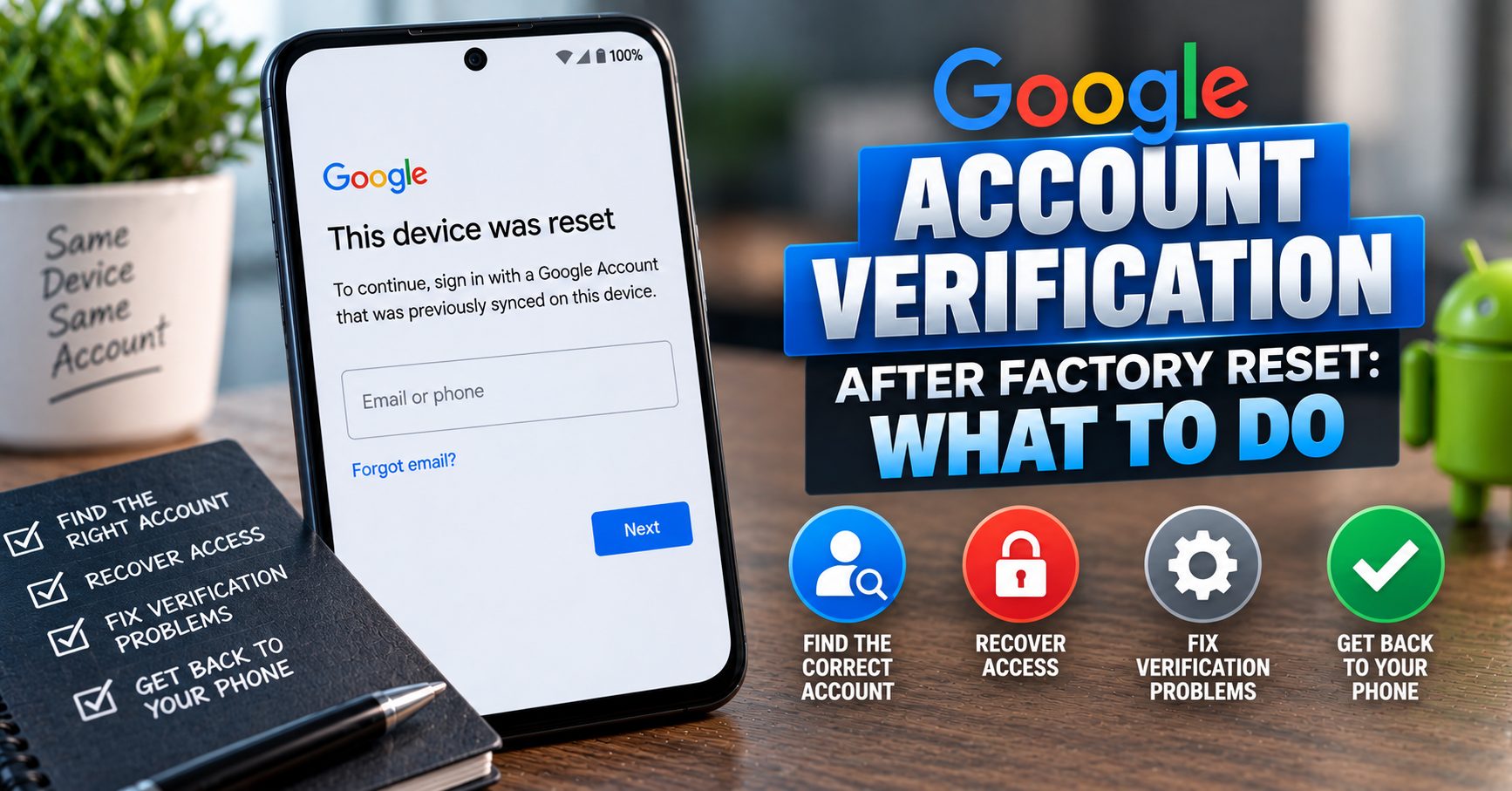
If the screen says something similar to “This device was reset” and asks you to sign in with a Google Account that was previously used on the phone, you need to identify the correct account and complete Google’s normal verification process.
This guide explains what the verification screen means, which Google account you should use, what to check when your password is rejected, what to do if verification keeps looping, and what legitimate options are available if you have forgotten the account.
Why Does Google Account Verification Appear After a Factory Reset?
Android includes a security feature commonly known as Factory Reset Protection (FRP) or device protection.
Its purpose is straightforward: if someone obtains an Android phone and erases it without authorization, a factory reset should not automatically turn that protected phone into a freely usable device.
Google explains that a protected Android device can require ownership verification after a factory reset. Depending on how the reset was performed, Android may ask for the device’s screen lock or a Google Account that was previously added and synchronized with the phone.
That means the following situation can be completely normal:
Phone is reset → Android starts setup → Google Account verification appears.
The verification screen does not necessarily mean the reset failed. It can mean that the reset succeeded and Android is now applying its ownership-protection process.
For a complete explanation of how this security system works, see our guide to FRP Lock and Factory Reset Protection on Android.
What Does “This Device Was Reset” Mean?
If Android displays a message such as “This device was reset. To continue, sign in with a Google Account that was previously synced on this device”, the phone is telling you that it needs ownership verification before setup can continue.
The important word is previously.
You generally cannot solve this screen simply by creating a brand-new Google Account. Android is looking for an account that was already associated with the device before the reset.
Google’s current device-protection documentation says that an account previously added and synchronized to the device can be used for verification, as long as it was added as an account or user rather than a guest.
Which Google Account Should You Enter?
This is one of the most important questions after an FRP-related reset.
If you used several Google accounts on the phone, do not automatically assume that your primary Gmail address is the one Android is requesting.
Think about which accounts were actually added to the device before the reset.
Possible accounts include:
- Your main personal Gmail account
- An older Gmail account
- A second personal Google Account
- A work or school Google account
- A family member’s account that was previously added as a user
- Another Google account used for Google Play or other services
If you still have access to another device where you can review your Google accounts, use that information to identify the account that was previously connected to the reset phone.
Our guide on checking which Google accounts are linked to an Android phone is particularly useful when you are trying to understand which accounts were present before the reset.
Can You Use Any Google Account?
Not necessarily.
For a protected device, Google says that you can sign in with a Google Account that was previously added and synchronized to the device as an account or user.
That is why entering an unrelated Gmail address can result in an unsuccessful verification attempt even when the account itself is perfectly valid.
The question is not simply:
“Do I have a working Google Account?”
The more important question is:
“Was this Google Account previously added and synchronized to this device?”
What to Do First When Google Account Verification Appears
Before repeatedly trying different passwords or accounts, work through the following checks.
- Identify the Google accounts that were previously used on the phone.
- Confirm the email address carefully.
- Make sure you are using the correct Google Account.
- Confirm that the password is correct.
- Connect the phone to a reliable Wi-Fi or mobile network.
- Restart the setup process if the verification screen appears to be malfunctioning.
- Use Google’s account-recovery process if you cannot sign in.
Do not treat repeated failed attempts as a reason to search immediately for an FRP bypass tool. If the device belongs to you, account recovery is the appropriate first path.
Step 1: Confirm the Google Account Email Address
A surprisingly common cause of verification problems is simply using the wrong Gmail address.
If you have several Google accounts, write down the addresses you remember using on the phone.
Check:
- Gmail accounts you regularly used
- Google Photos accounts
- Google Play accounts
- Google Drive accounts
- Google Contacts accounts
- Accounts used for Android backups
Look for the account that was actually present on the phone before the reset.
If you previously used multiple Google accounts, our guide on removing multiple Google accounts from Android also explains why identifying every account matters when preparing or troubleshooting a device.
Step 2: Verify That the Password Works
Do not assume that a password you remember is necessarily the current password for the account.
Before repeatedly entering credentials on the reset phone, try signing into the same Google Account from another trusted phone or computer.
If you can successfully sign in elsewhere, you have confirmed that the account credentials themselves are working.
If you cannot sign in elsewhere, solve the Google Account login problem first rather than continuing to troubleshoot the Android setup screen.
Google’s current Android factory-reset guidance specifically recommends confirming your Google Account username and password before a reset and checking that the credentials work on another device or computer.
What If You Forgot Your Google Account Password?
If you remember the email address but not the password, use Google’s official account-recovery process.
Google may ask questions or request information to confirm that you are the account owner. Available recovery options depend on the account and the information associated with it.
Do not give your Google password to a third-party FRP service claiming it can unlock the phone for you.
The correct sequence is:
- Recover access to your Google Account.
- Confirm that you can sign in successfully.
- Return to the Android setup screen.
- Enter the appropriate account credentials.
What If You Recently Changed Your Google Password?
This is an important situation to check.
Google’s current factory-reset guidance says that if you recently reset your Google Account password, you should wait 24 hours before performing a factory reset.
If you changed the password immediately before the reset, allow the recommended period to pass before assuming that the phone or account is broken.
Also remember that changing the Google Account password does not change which account was previously associated with the device.
What If the Correct Google Account Is Rejected?
If you are certain that you are using the correct Google Account but Android still rejects the credentials, work through the problem methodically.
Check the Email Address Again
Make sure you are using the exact Google Account that was previously added to the phone. A second Gmail address can look similar but represent a completely different account.
Confirm the Account Works Elsewhere
Sign in from another trusted device or computer. If the account does not work there either, the problem is likely with account access rather than the Android phone.
Check Your Internet Connection
Google Account verification requires network communication. Connect the phone to a stable Wi-Fi network if possible.
Check the Phone’s Date and Time
If the device has incorrect date or time information during setup, online authentication can sometimes behave unexpectedly. Allow the phone to use network-provided date and time settings when that option is available.
Restart the Phone
If the setup process appears stuck, a normal restart can be worth trying before performing any additional reset.
Allow Account-Recovery Changes to Settle
If you have recently changed your password or recovery information, avoid making multiple account changes while simultaneously trying to complete device setup.
Google Account Verification Keeps Looping
One of the more frustrating situations is when the phone appears to accept the Google Account information, performs a verification step, and then returns to the same verification screen.
This can happen for several reasons, including account-selection problems, connectivity issues, setup software problems, or device-specific issues.
Before assuming that the phone requires an unofficial solution, try the following:
- Confirm that the account is genuinely associated with the phone.
- Verify the account works on another trusted device.
- Connect to a different reliable Wi-Fi network.
- Restart the phone.
- Allow the setup process to complete without repeatedly backing out.
- Check for manufacturer-specific support for the exact model.
- Use Google’s account-recovery process if account access is uncertain.
If the same verification screen continues appearing after legitimate credentials are accepted, the problem may require manufacturer-specific troubleshooting rather than an FRP bypass.
Why a New Google Account Usually Does Not Solve the Problem
After a factory reset, it is tempting to create a new Gmail address and use that during setup.
That does not necessarily satisfy device protection.
When Android is asking for ownership verification, it is checking the relationship between the device and previously authorized account information.
A completely new Google Account does not automatically replace that relationship.
This is intentional. Otherwise, someone who obtained a protected phone could simply erase it and create a new account to take ownership of the device.
What If You Bought the Phone Used?
This is a particularly important scenario.
If you bought an Android phone from another person and the setup screen asks for the previous owner’s Google Account, the problem is generally not something you should try to solve by guessing accounts.
The previous owner should have removed their Google Account from the phone before transferring it to you.
If they did not, contact the seller and ask them to properly prepare the device for transfer.
Do not ask the previous owner to give you their Google password. Their account credentials are private and should remain private.
The safest solution is for the legitimate previous owner to handle the account-removal process themselves.
Can the Previous Owner Remove the Account After the Phone Has Already Been Reset?
This situation is more complicated than simply removing the account before a reset.
The ideal process is always to remove the Google Account from the phone while the owner still has normal access to Android, and then perform the factory reset.
If a used phone was already reset while the previous owner’s account remained associated with the device, contact the seller and follow the manufacturer’s or Google’s supported ownership-recovery options.
Do not ask the previous owner to send you their account password or verification codes.
What If You Are the Original Owner?
If the phone belongs to you, the solution is usually much more straightforward.
Your goal is to identify the Google Account previously associated with the device and regain access to that account if necessary.
If you can recover the account, return to the Android setup process and use the appropriate credentials.
If you have permanently lost access to the account, use Google’s official recovery options before considering any other troubleshooting route.
Google Account Recovery vs FRP Bypass
These are two completely different approaches.
| Option | Purpose |
|---|---|
| Google Account Recovery | Helps the legitimate account owner regain access to their Google Account. |
| Using the previously associated account | Provides the ownership credentials Android may require after a protected reset. |
| Manufacturer support | Provides model-specific assistance when normal setup or account recovery does not resolve the problem. |
| FRP bypass | Attempts to circumvent the device’s ownership-verification mechanism and is not the normal solution for an owner who has lost account access. |
If you own the device, focus on account recovery and supported setup rather than attempting to circumvent the security mechanism.
Does Removing the Google Account Before the Reset Prevent This?
For a phone that you are selling, giving away, trading in, or returning, yes: removing your Google Account from the device before the factory reset is the proper preparation step.
Google’s device-protection documentation states that removing the Google Account from the device turns off device protection.
This is why the previous article in this cluster focuses specifically on how to remove FRP protection before a factory reset.
If you have not reset the phone yet, that guide is the better place to start.
What If You Have Not Reset the Phone Yet?
If you are reading this article before performing the factory reset, you have an advantage: you can prevent the problem rather than troubleshoot it afterward.
Before resetting a phone you intend to give to someone else:
- Back up your important information.
- Check every Google Account currently added to the phone.
- Remove your Google Accounts from the device.
- Review manufacturer accounts.
- Remove other personal accounts and information.
- Perform the factory reset.
- Allow the phone to reach the initial setup screen.
For the complete process, see how to factory reset Android without FRP problems.
What If You Reset the Phone Using Recovery Mode?
Recovery-mode resets are one reason users sometimes encounter ownership verification unexpectedly.
Google explains that resetting a protected device with its buttons can require the device’s PIN, password, or pattern and can subsequently offer the option to use a Google Account that was previously on the device.
This does not mean that every recovery reset automatically creates an FRP problem. It means that you should expect Android’s ownership-protection process to apply when the device remains protected.
If the phone was working normally before the reset, preparing the accounts first and using the standard Settings reset is generally the cleaner approach.
What If You Used Find Hub to Erase the Phone?
Remote erasure is different from a normal reset performed directly from the phone.
Google’s current Find Hub documentation states that if you remotely erase an Android device, you will need the Google Account password associated with the device to use it again.
Therefore, if you remotely reset your own lost or recovered phone, make sure you still have access to the appropriate Google Account credentials before attempting to set the device up again.
Does Factory Reset Delete the Google Account?
No.
A factory reset erases data from the phone. It does not mean that your Google Account itself has been permanently deleted.
This is another reason why it is useful to distinguish between:
- Removing a Google Account from an Android phone
- Signing out of a Google application
- Factory resetting the phone
- Permanently deleting the Google Account
If you need the basic account-removal procedure, read how to remove a Google Account from an Android phone.
What If You Had Multiple Google Accounts?
If several accounts were previously added to the phone, identifying the correct account becomes especially important.
Google’s device-protection documentation says that a Google Account previously added and synchronized to the device can be used for verification.
Therefore, do not assume that the account you currently use most often is necessarily the only account that matters.
If you are unsure which accounts were on the phone, review the account history you can still access and think about which Gmail addresses were used on that specific device.
Our guide on removing multiple Google accounts from Android is useful for understanding how multiple accounts can coexist on a single device.
What If Google Account Verification Is Still Not Working?
If you have confirmed the correct account, verified that the credentials work elsewhere, and still cannot complete Android setup, stop repeatedly changing your account information.
At that point, work through these possibilities:
- Confirm the exact Android model and software version.
- Check the manufacturer’s support documentation.
- Confirm the phone has a reliable internet connection.
- Verify that the Google Account is accessible from another trusted device.
- Use Google’s account-recovery tools if necessary.
- Check whether the device was previously managed by a company or school.
- Contact the manufacturer if the setup process appears to be malfunctioning.
Company-managed devices can have additional enterprise policies, so a work or school phone may behave differently from a normal personally owned Android device.
Can IMEI or a Network Unlock Code Remove Google Account Verification?
No.
Google Account verification after a factory reset is different from carrier or SIM-network unlocking.
An IMEI identifies a mobile device on cellular networks. A network unlock code is related to carrier restrictions. Neither should be confused with Google’s device-protection system.
If you are researching carrier unlocking, our NCK and network unlock guide explains that distinction in more detail.
Likewise, an IMEI-related repair problem is separate from Google Account verification. Our IMEI repair guide covers that different problem.
What You Should Not Do After an FRP Verification Screen Appears
When a phone is stuck at Google Account verification, avoid making the situation more complicated.
- Do not repeatedly guess random Google passwords.
- Do not give your Google password to a stranger.
- Do not share Google verification codes with another person.
- Do not permanently delete your Google Account just to troubleshoot the phone.
- Do not assume that a new Gmail account will replace the previously authorized account.
- Do not pay for an unofficial service before determining whether normal account recovery will solve the problem.
- Do not treat an IMEI number as an FRP unlock code.
If the device is yours, the safest path is account recovery and supported Android setup.
Google Account Verification After Factory Reset Checklist
Use this checklist when Android stops at the Google verification screen:
- ☐ Identify every Google Account previously used on the phone.
- ☐ Confirm the exact email address you are entering.
- ☐ Verify that the account password works on another trusted device.
- ☐ Check your internet connection.
- ☐ Restart the phone if setup appears stuck.
- ☐ Consider whether the password was recently changed.
- ☐ If necessary, recover the Google Account through Google’s official process.
- ☐ If the phone was purchased used, contact the seller rather than requesting their password.
- ☐ If the phone was company-managed, contact the appropriate administrator.
- ☐ Contact the device manufacturer if legitimate verification continues to fail.
Frequently Asked Questions
Why is Google asking me to verify my account after a factory reset?
Android device protection can require ownership verification after a factory reset. The purpose is to prevent an unauthorized person from simply erasing a protected phone and setting it up as their own.
What Google Account should I use after a factory reset?
Use a Google Account that was previously added and synchronized to the device when Android is requesting ownership verification. If you used multiple accounts, identify which ones were actually present on the phone before the reset.
Can I use a new Gmail account after a factory reset?
If the phone is asking for ownership verification, a completely new Google Account generally does not replace the previously authorized account information required by device protection.
What if I forgot the Google Account password?
Use Google’s official account-recovery process to regain access. Do not give your credentials to an unofficial FRP service.
What if I recently changed my Google password?
Google recommends waiting 24 hours after a recent password reset before performing a factory reset. If the reset has already happened, allow account changes to settle and make sure you can sign into the account elsewhere.
Can I remove Google verification with an IMEI?
No. IMEI information and carrier network unlocking are separate from Google Account verification and Android device protection.
What if the phone belongs to someone else?
If a used phone is asking for the previous owner’s Google Account, contact the seller or previous owner. They should properly remove their account from the device rather than giving you their Google password.
What if the verification screen keeps coming back?
Confirm the correct account, verify the credentials elsewhere, check the network connection, restart the phone, and use official account recovery or manufacturer support if the problem continues.
Can I avoid this problem before factory resetting my phone?
Yes. If you are transferring the phone to another person, remove your Google Account from the device before performing the factory reset. This is the proper way to prepare the device and turn off Android’s device protection.
Final Thoughts
Google Account verification after a factory reset is usually a security step, not evidence that the factory reset failed.
If the phone belongs to you, identify the Google Account previously associated with the device and make sure you can access it. If you have forgotten the password, recover the account through Google’s official recovery process rather than trying to bypass the verification screen.
If you bought the phone used and it is asking for someone else’s Google Account, the previous owner should properly prepare the device for transfer. Never ask them to give you their password or verification codes.
And if you are planning a reset before selling or giving away an Android phone, prevention is much easier than troubleshooting afterward: remove FRP protection before the factory reset, then follow the complete Android factory-reset process without FRP problems.